7.25.2019

How to set up new MB SD Connect C4 DoIP?

To use new MB Star SD Connect C4 DoIP diagnostic scanner, you need to configure it first.  Follow steps below to configure SD Connect C4 DoIP multiplexer:

configure-mb-sd-c4-doip-1
1. Go to local network connection
configure-mb-sd-c4-doip-2
2. Press Properties
configure-mb-sd-c4-doip-3
3. Choose Internet Protocol Version 4 (TCP/IPv4), press OK to continue
configure-mb-sd-c4-doip-4
4. Enter IP address
IP address: 172.29.127.24
Subnet mask: 255.255.0.0
configure-mb-sd-c4-doip-5
5. Click on Advanced 
configure-mb-sd-c4-doip-6
6. Click on Add to configure DoIP IP address
configure-mb-sd-c4-doip-7
7. Set DoIP IP address to 169.254.0.** (i.e 169.254.0.45)
8. Click on OK to finish configuration.

Video guide:
FYI:
The new SD connect C4 DoIP (1:1 clone of the original) is able to work for DoIP.
It’s the only C4 that supports ethernet communication (DoIP).
Have tested no issues on new mercedes with doip.

7.11.2019

W220 W168 W163 test by VXDIAG Benz C6 vs. SD connect C4

Can you provide some list of the supported Mercedes models and diagnostic protocols? Are there any restrictions on trucks, buses etc.?

Here is a test report of Mercedes W220 W168 W163 diagnostic test. Done with Allscanner VXDIAG C6 and SD connect C4 china clone.


Pre-test conditions:
VXDIAG C6 Benz DoIP

VX Manager version: 1.6.0.0625

Firmware versions: VCI - 1.6.1.0 / DoIP - 1.5.6 
MBSTAR software version: 03.2019 
Connection to laptop: LAN cable
vxdiag-benz-c6-doip-1

vxdiag-benz-c6-doip-2

SDconnect C4 China clone MBSTAR software version: 03.2019 Connection to laptop: LAN cable


Test results on real cars:
Car 1: W220 S320 gasoline 2001 VIN: WDB2201651A115564
VXDIAG C6 DoIP Benz – car have 29 control modules but C6 finds only 9 of them!

vxdiag-benz-c6-doip-test-benz

SDconnect C4 – all 29 control modules are found and accessible.

sdconnect-c4-test-benz-1

sdconnect-c4-test-benz-2
Car 2: W168 A160 gasoline 2001 VIN: WDB1680331J439808
VXDIAG Benz C6 – finds VIN number automatically but 1 control module is not recognized - TAC (Automatic temperature control). We can’t enter control modules because it seems like the HHTWIN is not supported.

vxdiag-benz-c6-test-benz-2

SDconnect C4 – finds VIN automatically and recognizes all control modules.

vxdiag-benz-c6-test-benz-3


Car 3: W163 ML270CDI diesel 2002 VIN: WDC1631131A405201
VXDIAG C6 DoIP Benz cannot detect the VIN number automatically. Some control modules are not recognized. MB SD C4 finds VIN number automatically and recognizes all control modules.


We have tested newer cars too. Just one example:

ML164 320CDI 2006 VIN: WDC1641221A094001 - VXDIAG C6 finds and test all control modules and operates the same as SDconnect C4!


Problem is that not all car control modules are recognized and accessible on older cars like W220, W168, W163.


In sum, VXDIAG Benz C6 maybe works well for new Mercedes but SD connect C4 can work no problem for new and old cars.

5.28.2019

Which scanner can diagnose 1999 Mercedes E430 W210?

Topic:
looking for an inexpensive diagnostic scanner to troubleshoot a 1999 E430 W210
(as well as other older Mercedes models with 38-PIN round diagnostic socket).

Working experience:
I recently purchased an Autel MD808 Pro under the belief that it could, among other things, clear the “Service Engine Soon” instrument cluster readout on any Mercedes with OBD II. Per Autel Tech Department it can clear codes/instrument cluster readouts through the OBDII port…but only for years ’08 and newer, which I (frustratingly) discovered AFTER I had purchased and attempted to use it.
autel-md808-pro-mb
I saw there is a “Autel 38 Pin OBD2 Diagnostic Scanner Adapter Connector Cable for Mercedes Benz” their own product. So i want to find out if it will work with the DS808 Pro in all claimed capabilities.
 It’s confirmed. There is no way to interface the 38 pin connector to the OBD II 16-pin connector with an “inexpensive” Autel scanner.
According to said tech department, there is NO ADAPTER that can be used to interface the MD808 Pro to the 38-pin connector. For that matter, the technician intimated that the tool that Autel produced that COULD interface and clear the instrument cluster readout was a >$4K model. That’s way to expensive for me.
The technician further explained that the ’99 Mercedes was a little ahead of its time, having BOTH the 38-pin connector found under the hood in the fuse box and the OBD II port under the dash. From what I understand, the OBD II port will allow the reading of ENGINE-specific data…but just about any inexpensive OBD II scanner can do that.
If there is an inexpensive scanner that can read ALL the data/systems AND clear the instrument cluster readouts, I would be interested in hearing about it/them.

Obdii365.com recommendation:
Anyone who buys those $4 to $10 OBD2 to 38-pin adapter cables and expect to access all the modules is dreaming.
You need Mercedes special diagnostic scan tools.
This 38-PIN multiplexer adapter allows you to connect your Mercedes equipped with the older, round 38 PIN connector to a compatible Foxwell NT520 PRO diagnostic tool.
Foxwell NT644 Pro and GT80 with 38-PIN adapter certainly will do, but they are out of price range.
foxwell-benz-38-pin-1

foxwell-benz-38-pin-2
NT520 Pro Mercedes Benz model list:
A Class: 168 , 169 , 176
AMG GT: 190
B Class: 245 , 242/246
C Class: 202*(As of 06/97), 203 , 204 , 205
CL Class: 140*, 215 , 216
CLA Class: 117
CLC Class: 203
CLK Class: 208*, 209
CLS Class: 218 , 219
E Class: 210*(As of 03/97), 207 , 211 , 212
G Class: 461 , 463
GL Class: 164 , 168 , 166
GLA Class: 156
GLC Class: 253
GLE Class: 292, 166
GLK Class: 204
M Class: 163 , 164 , 166 , 292
Maybach Class: 240
R Class: 251
S Class: 140*, 220 , 221 , 222 , 217
SL Class: 129*(As of 09/99), 230 , 231
SLC Class : 172
SLK Class: 170(up to 2001)*, 170(after 2001) , R 171 , R 172
SLS Class: 197
SLR Class: Series 199
 
 
2). MB Star SD Connect C4/SD Connect C5 multiplexer 
If you want to access ALL the modules for your car, a MB Star C3 /C4/C5 clone is a way to go.
 All MB SD control units are accessible, like engine ECU, ABS, Airbags, SRS, Aircon, Immobilizer, Keyless Entry and the rest of 40+ control units used in MB cars. You can Read / Delete Faults, Live Data, perform sensor actuation, read current configuration, initialization and a lot more.
All MB from late 80’s to 99 = HHT-WIN
All MB from 2001 to 2009 = DAS
All MB from 2010+ = Xentry
The latest MB star diagnostic system is compatible with HHT-WIN software for old Mercedes troubleshooting.
mb-sd-c5

mb-sd-c4


3).
Some people use Delphi system for old Mercedes. i.e I use it on a 1998 E320, and I can access Engine computer, Transmission Control Unit, Instrument Cluster, Restraint System, Ignition (EIS), Climate Control, ABS/BAS, but it will not read body control modules, like SAM, PSE, door control modules, lower/upper console modules etc. This is good enough for me.
If you need the delphin system, please contact us via PM.


Disclaimer:
Parts of Mercedes owners prefer icarsoft scanners.  iCarsoft MB II is the fact that it will not work on older models past 1993. It will not work on models that require a 38 pin connector such as the E 320 and CLK 430. In these models it can only read the ECU (check engine light). You also want to skip MB i980 which can only do ECU and SRS / Airbag diagnostic.

http://blog.obdii365.com/2019/05/28/inexpensive-diag-scanners-for-1998-1999-mercedes/

5.16.2019

MB Star Xentry retrofits and modifications review

I bought a mb star diagnosis and Xentry.
I have already retrofitted several times in my cars the Comand.

You can do several modifications.


Remaining liters, tank contents, remaining liter display, date in the instrument cluster (164, 251, 171, 211, 203, 209, 219, 230)


AMG menu in the AI ​​(all)


AMG menu in NTG5 Comand (all)


Turn off the Gurtwarner (all)


Adjusting the beacons (204, X204, 212, 207)


SBC brake read the actuations and of course reset the counter and clear the EEPROM reached for service threshold. (211, 219, 230)


M mode (204, 218, 219, 211, 212, 207, others on request.)


Vehicle dynamics package (204, 218, 212, 207, others on request.)


Closing confirmation (212, 204 Mopf, 218 and all m EDW)


display various pictograms in the AI, pre-glow indication in the AI ​​and attachment note as picture (164, 171, 251, 211, 203, 209, 219, 230)


Unlock cornering light (depending on models 203, 164, 212, 218, 245, 211, 204, 230, 169, 171 etc.)


Radio lag, the radio / COMAND remains off after removing the ignition key for a few seconds. (all types)


KI reprogram brake instead of brake symbol (all models)


activate various comfort functions (all)


Enabling Bluetooth Audio on the Audio 20 (212, 207, 218)


Warning signal with engaged R (some models eg 212/207/218)


Pointer wiping at start (AI) (some models eg 231/172/246/176/166)


Curvmatic (NTG1 211, 230, 220, 219)


DVD and TV activation while driving (some models via software, NTG1 211, 230, 220, the rest per module)


Activating reversing camera (NTG 2 (only 164) / NTG 2.5 / NTG 3 / NTG3.5 / NTG 4 / NTG4.5 / NTG4.7 / NTG5)


Program daytime running lights, (special 204/212/218) Speedometer lights on for all KIs in conjunction with side lights


Programming the footwell lighting, brighter, (spec 204, 212, 207, 218)


Cancellation of the Vmax limitation with some model (eg 204, 212, 207, 218, 216, 221, etc. USA and AMG engines, also 220 CDi)
New software also newer models possible !!!


Coding for conversions, even those Mercedes does not release, Comand USA / ECE swap.


US-COMAND NTG 4 and 4.5 imported in the W204 / 212 from the US to ECE.


Mapcodes / Mapcodes for all NTG 4.5 a. NTG 5.


Modification US-Meilentacho on ECE scale, incl. Coding. At 164, X164 u. 251 pure coding on Km.


Air conditioning fan indicator (all with LCD climate indicator)


Permanent activation of tacho lighting (all vehicles with 3-tube tacho with color display)


Permanently deactivate ECO (start / stop) (all vehicles with ECO)


Learning to use second-hand tachos with Assyst also possible modifications. (all)


Increasing the volume of the radio and after-running of the radio (NTG 2.5, NTG 4, NTG 3, NTG 4.5)


Parktronic warning tone in the yellow area (only new models eg W212 / 207/218/176/246/231/222/172)


Lower Airmatic (all)


Encoding of the SAM in the 204 / X204 / 221 when retrofitting the MOPF rear lights, without replacing the SAMs

Helfe also in the search and correction of errors.


All functions are tested and can be removed at any time.


Some retrofit pictures attached:
mb-star-retrofit-1

mb-star-retrofit-2

mb-star-retrofit-3

mb-star-retrofit-4

mb-star-retrofit-5

mb-star-retrofit-6

mb-star-retrofit-7

mb-star-retrofit-7
https://www.obdii365.com/wholesale/mb-sd-connect-compact-4-star-diagnosis.html
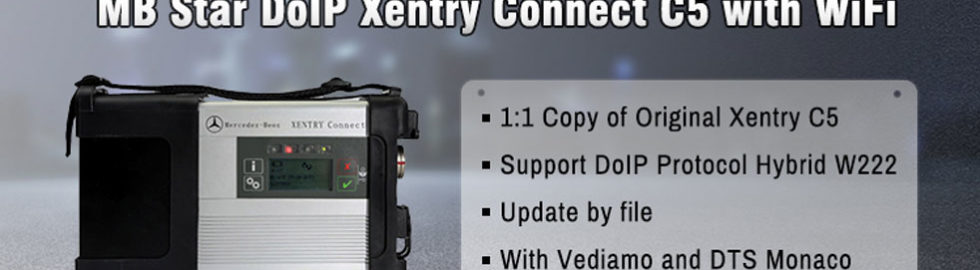
5.08.2019

Benz eCOM DoIP and SD connect C4 Comparison

Look here: What’s the difference between Benz eCOM DoIP diagnostic tool and MB Star diagnostic SD connect c4 multiplexer?
Mercedes diagnostic tooleCOM DoIPSD connect C4
Image 
benz-ecom-doip
 
mb-sd-c4
Price899469
Software compatibility
XentryYes, Xentry 03.2019Yes, Xentry 05.2019
DASNoYes, DAS 05.2019
VediamoYesYes
DTS MonanoYesYes
EPCYesYes, EPC 11.2018
WISYesYes, WIS 11.2018
SDmediaYesYes
HHT-WINNoYes
Star FinderYesYes, Star Finder 2008 & 2016
Price List (PL)NoYes, PL73
Functionality
DiagnosisYesYes
Online programmingYesYes
Offline programmingNoYes
Online SCN codingYesYes
You should pay for SCN coding
Protocol compatibility
CAN1 (high speed)YesYes, CANBUS
CAN2 (high/low speed)YesYes, CANBUS
K-LineYesYes
USDYes
LINYesNo
Ethernet DoIPYesNo
KL15YesNo
Vehicle coverageNewest vehicles Only (after 2009 – w204 and up) Serial 200xxx
Special for DoIP programming on the latest E and S series.
Perfect for Mercedes COMAND NTG5, NTG5s1, NTG5s2, NTG5.5 flashing/programming
Car, Bus, Truck, Sprint, Smart 1989-2019


In summary,

New car: eCom DoIP
eCom – laboratory\development tool. Most cheap and light. Can’t be used with DAS\HHT vehicles. Need luck with kline communication. Need to be specially setup on any diag sw installation.
Normal: Clone SDConnect C4SDConnect – workshop\robust tool. Most universal in use. The only limitation is kline communication in Vediamo from ver5* Easy to setup. In most cases work as is.


Good to know:

Actia eCOM DoIP Box Multiplexer Kit supports DoIP for the latest E and S series, and it’s perfect for Mercedes COMAND NTG5, NTG5s1, NTG5s2, NTG5.5
ECOM is the diagnostic and swipe communication interface used by daimler-benz’s production and r&d department. It supports the after sales diagnostic software Xentry, Vediamo, and the Monaco DTS, the exclusive development software, with higher access rights than SDconnect (C4).
ECom supports the CAN/DoIP network, which CAN be used for the diagnosis and brushing of new car audio and video entertainment systems. Vediamo for Mercedes engineers is an engineering software used by Mercedes engineers to develop diagnostic software, that is, Xentry and DAS now in use is developed based on Vediamo and delivered to general after-sales dealers. For this reason, using the Mercedes super engineering version is open to all diagnosis /coding/retrofit/flashing programming features. It is possible to add or reduce SA codes freely without going through VEDOC(the process of the original factory applying for modifying the equipment code), so as to achieve the purpose of modifying the vehicle equipment, such as adding SA500 electric rearview mirror.
Xentry and DAS Developer mode, commonly known as: exploit data engineering version after 2010, has added many restrictions on functions. Therefore, people may encounter that the vehicle version is too new to enter the control unit, or they cannot make any special modifications after entering the control unit. For example, the w204/212 2012 meter may need to be configured in the regional language, or turn on other convenience functions.
The database of diagnosis /coding/retrofit/flashing for the Mercedes engineer version USES the Xentry database, so the Mercedes engineer version is dependent on the Xentry version. As long as the database is new, the Mercedes engineer version can use the V4.00 version on the new model, and compact3 & SDconnect does not support the ODX document. The latest V5.00 supports ODX files with eCom. It is recommended to use eCom with DoIP function, which is faster and more stable.

3.10.2019

How to setup VAS5054A PassThru Driver for Xentry Windows 10 x64

Something good to help you to make Xentry PassThru on Windows 10 x64 support new Mercedes models (Euro5/6, W205, W213, W222). Done with VAS5054A PassThru Driver

Xentry PassThru needs to be installed on Windows x64 to support new models, such as Euro5/6, W205, W213, W222 … However, VAS5054A didn’t work on 64bits as passthru. There is 64bits device driver for VAS5054A but there is no PassThru driver working on 64bits. You may try Actia driver instead but this is a patched 32bits PassThru API files with 64bit device drivers working on Windows 10 x64. Xentry recognizes it and works with W205 (confirmed), etc.


WARNING: Use it on your own risk, only for test purpose.
What you need:
(1) VAS5054A Bluetooth hardware. (genuine and good clone… both ok)
(2) (option) VAS5054A EDIC_PDU_API 1.20.4x driver installation file. You can find it somewhere on this forum.
(3) (option) New firmware. The firmware included here is version 1.20.41 for better compatibility, not 1.20.42.
(4) Softing_VAS5054A_PassThru_Driver_x64_v3.zip (attached here)
(5) 64bit Windows 10
(6) (option) DC 12V power adapter, 2 jumper wires for temporary power.


Pre Installation:
(1) Install Xentry PassThru and do all patches.
(2) (option) Install EDIC_PDU_API 1_20_42 driver (or EDIC_PDU_API 1_20_41). It’s for installing .NET framework or VC++ redistribution files.
If you are going to do clean install on fresh Windows 10, you might want to install the EDIC_PDU driver first. It installs .NET framework, VC++ files, some EDIC DLLs on /Windows/System32 or SysWow64. Other files will be overwritten by the below manual installation. 

Installation:
(1) Copy “Program Files (x86)\Softing\*” to your HDD “C:\Program Files (x86)\Softing\*”
(2) Copy “Program Data\D-PDU API” to your HDD “C:\Program Data\D-PDU API”.
(3) Double click on “Softing_VAS5054A_PassThru_1_20_042.reg” and install it.
(4) Make a shortcut of “SftngCM.exe” on Desktop.
(5) Right click on “C:\Program Files (x86)\Softing\EdicDriver\win7\softingedic7_ntamd64.inf” and install.
(6) Connect the VAS5054A hardware using an USB cable. Connect it to a temporary power(12V DC adapter) or OBD-2 port.
(7) Check “Control Panel/Devices Manager/Softing…”. If not installed correctly, update the device driver manually.
(8) Make a shortcut of “EDICConfig.exe” on Desktop.
(9) (option) If you have newer version than EDIC_PDU_API 1_20_42 driver and genuine VAS5054A hardware, you may install the API driver now.

Post Installation:
(1) Connect the VAS 5054a to a temporary power(12V DC adapter) or ODB-2 port.
(2) Run “SftngCM.exe” on desktop as administrator. Make a “C:\Temp” directory if not exists. This is for saving log files. If not exists, SftingCM.exe will cause error when doing test.
(3) Choose “VAS5054A” and type the serial number (maybe 0821xxxxx).
(4) Select “Test” and click on “Start Test”.
– RED dot : PC <-> VAS5054A does not communicate. Something wrong on your driver.
– YELLOW dot : PC <-> VAS5054A communicates.
– GREEN dot : PC <-> VAS5054A <-> Vehicle communicates.
Tip:
(1) “.NET Framework 2.0/3.0/3.5” needs to be installed if not installed automatically. You can install it by selecting on “Control Panel/Programs and Features/Turn Windows features on or off/.NET Framework 3.5(includes .NET 2.0 and 3.0)”. You also need to install VC++ redistributions if not done yet. (MSVCR100.dll, mfc100.dll, … errors)
(2) Temporary power to VAS5054A for test purpose : Ground to either pin 4 or 5. 12V DC to pin 16.
(3) You can upgrade the EDICDriver in “Program Files (x86)\Softing\EDICDriver” if you have newer version. Update the device driver on control panel.
(4) If you installed newer version EDIC_PDU_API driver than 1.20.42, edit the *.reg and change the number 1_20_42 to your number (for example, “EDIC_D_PDU_API_1_20_042” to “EDIC_D_PDU_API_1_20_0XX”). After editing, double click on it and install it again.
(5) If your device has different serial number but SftngCM.exe doesn’t allow the change, edit the *.reg file with text editor, double click on it and install it again.
vas5054a-driver-for-win7
Download:

Softing_VAS5054A_PassThru_Driver_x64_v3.zip

http://blog.obdii365.com/2019/03/10/make-xentry-passthru-work-for-new-models/

3.05.2019

Benz W215 2003 diagnosis with DTS Monaco or Vediamo

This is for those maybe interested getting DTS 8 or Vediamo v5 working on 2003 Mercedes later.

My configuration:
X230 Lenovo
SD connect C4
No Xentry nor DAS (it seems better to not install this as it can created more probles in test phase)
Just InstallSDconnectToolkit 2.1.30 also have 2.1.14 but not installed (maybe should I use 2.1.14 ? )
and DTS Monaco 8.08.021
IP4 set to 172.29.127.100 255.255.255.0 dns 8.8.8.8
My actual settings:
mb-sd-connect-c4-dts-monaco-setup-1
mb-sd-connect-c4-dts-monaco-setup-2
Set up 2 computers for testing:
computer 1)  vediamo 4.02.02  on XP Xentry 09.2014
computer 2) DTS 8.08.21 on Windows 7 x32 clean NO Xentry, No Vediamo, with a custom 2.1.7.1 Toolkit and ToolkitApiDll_4.0.dll in sytem32
Vehicle: W215 2003 V12 Biturbo
mb-sd-connect-c4-dts-monaco-setup-5
Problem:
I found several source with W215 folder and 1 works, but partially
On the picture you can see, once I apply filter, these are the only few that connect
mb-sd-connect-c4-dts-monaco-setup-6

Only these ecus above turn green
other 20-30 not

Solution:

The solution in understanding that in 2003 year where there’s no any Vediamo and DTS8
Free solution is using DAS. It solves 99.99% tasks in this kind of vehicles.
Not free solution use other hardware and software.
mb-sd-connect-c4-dts-monaco-setup-3

mb-sd-connect-c4-dts-monaco-setup-4
From Vediamo manual:

CaesarGo: This firmware usually runs directly in the non-volatile memory of your CAESAR hardware, e.g., in Part A or Part Y. Supports older communication protocols as well, e.g., KWFB. The new UDS protocol is not supported.
TLSlave: This firmware runs on the computer used. The faster the computer, the quicker the different communication tasks can be completed (e.g., flash processes). Also allows the simultaneous opening of up to 50 CAN channels. This firmware supports “newer” protocols as well, e.g., UDS.

Good to know: CBF files is not about K-Line. CBF file use also W212 for example. Try to use Vediamo 4 for K-Line ecus.

For newbies: if you are not good at DTS or Vediamo settings, you could get a disk that installed all Mercedes software (Xentry/DAS, DTS, Vediamo, EPC, WIS, etc) before delivery. Tested successfully and plug-and-play!
Look here:
SSD version: http://www.obdii365.com/wholesale/2019-03-mb-star-software-ssd.html (runs faster and more stable)
mb-star-with-all-software
Chart: explains the reason why many are looking for DTS
DTS-monaco vs. Vediamo
FunctionsDTS monacoVediamo
All cars have one key code accessYesNo
Vehicle control unit software,
One key storage
YesNo
Car fault codes readingYesNo
Data exchangeYesNo
Quick testYesNo
Single control unit keys off-set codeYesNo
Offline programmingYesYes
Increase reduced SA codesYesYes
Personalize the control unit parametersYesYes

Definitely, DTS-monaco wins!
http://blog.obdii365.com/2019/03/05/w215-2003-k-line-diagnosis-dts-monaco-or-vediamo/