Car model and year: Mercedes Benz 221.176 (2007 S600)
Purpose: update the Navigation
Problem:
My NAVI was out of date, so I bought the NAVI V15 (2016 version) DVD, the last available for the USA and it didn’t work right.
How to fix it?
To update Telematics and requires DAS Software running with mb sdconnect c4 hardware.
The Telematics update must be done to make the last NAVI version work correctly. if you don’t have “Bird’s-eye View” or “Video” on the Comand screen, you don’t have the Telematics update… But, you’ll know when you try to install the last NAVI update version.
How to do next?
- You need or will need to get, Star/Xentry/Das. I got mine almost six years ago… Version 09/2014 running on Windows XP with a Dell D630 laptop– don’t ask me why but, the DIY version of DAS seems to work best on that old Dell… As many have said, having DAS is a “Must” to do most work on the W221 and will pay for itself the first time you need it…
Once you get familiar with Xentry, you’ll find that SCN coding (updating software programming, as opposed to just “coding”, which DAS will do…) is not normally available in DAS– it requires access to MB’s online database.
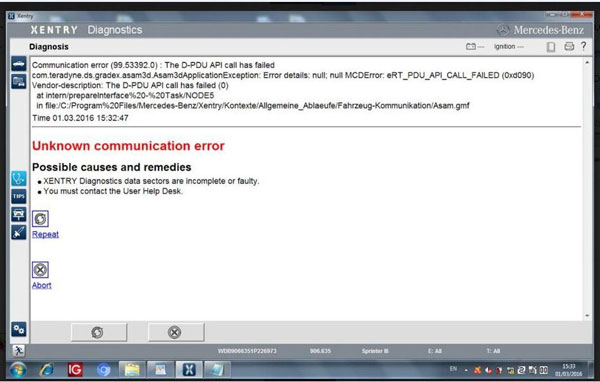
E.g.,when trying to program, or ‘update’, Telematics/COMAND (control units> communications>telematics> adaptions> programming– or, something like that path), you’ll get to this screen:

FYI, For Telematics, I ordered the CD from a dealer, part # A221-827-06-65-26. I was thinking I might could use Developer Data to load it. Dealer emailed me back that the CD-ROM has to come from Germany. I cancelled the order and looked to see if I could just download the .iso file and burn my own CD. It’s not an iso file, BTW, it’s just a CD data disc, as we will see…
- If you start searching for stuff like that, Telematics CD, you are probably going to find yourself in the weird world of *******.com. 25USD to join and, like me, you’ll probably find the download you are looking for is no longer available…
Now, at this point, like me, you’ll find out you have to “start all over again”:
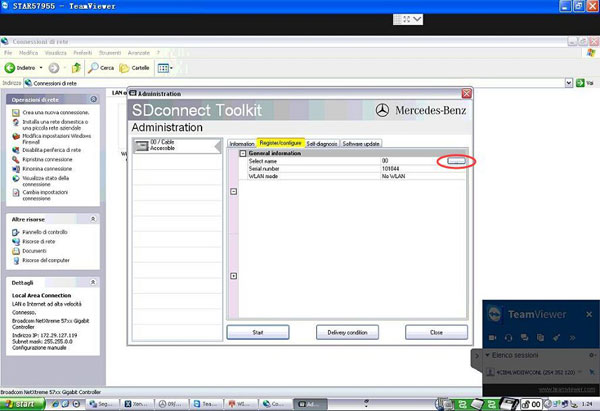
A. You need to figure out how to change your DAS to do “off-line programming”… See the screen shot above.
Tip, get another hard drive of the same type as the one your Xentry/Das software came on and clone your working hard drive, test the clone and set it aside, in case you FUBAR the good, working drive… I didn’t need the back-up hard drive, but it’s good insurance. Also, I don’t know exactly which Xentry systems are in favor today but, from the discussions on the forum, it seems many owners have the old Dell/XP setup… IMHO, XP is a stable and reliable OS, so, if it ain’t broke don’t fix it….
- Without going into too much detail, you need to modify the files that your Xentry hard drive came with. Specifically: (DAS) F:\programme\das\trees\pkw\Flashen. (Your hard drive may have a different drive letter. And, you need to know how to use Windows ‘File’ Explorer, cut and paste, etc., etc.) The “Flashen” folder holds the files that allow offline programming.
- The “Flashen” folder is just programming so, one would assume, you can modify it. I tried that without success… Anyway, the “Flashen” folder is out there on the net, so I’ll leave it to you to find a copy of “Flashen” or reprogram it yourself???
- If you install “Flashen” (i.e. replace the folder you have with one that allows offine programming), instead of “Xentry Flash access required” on the screen above, you’ll get to a screen that allows “off-line programming”… Hooray… you’ll think… Well… maybe you are half-way there…. more like a quarter of the way….
(If you’re still reading, this may be good time to stop and come back to “5” when you are able to get to this DAS screen after changing your Flashen folder.):

- Next, when you get to the decision screen of offline vs online and choose offline, unless you’re damned lucky, you’ll probably get errors about VeDok or other mysterious missing “stuff”. Here’s where it gets fuzzy for me… I tried a bunch of “stuff” and don’t know exactly what made a difference… But, here are some more tips…
- First, you need a SDflash folder that DAS can read… This may be located in a drive partition. In my case, there were two: (WIS) E:\programme\SDflash and a virtual drive, K:\SDflash. The virtual drive, Alcohol 120% software, was already on my Dell. I think you need the Alcohol 120% or something similar to “mount” the SDflash.iso in a virtual drive in XP. Windows 10 has the “mount” ability built in, just right-click. “Mount” changes the iso file to folders you can read, copy and manipulate.
- There are a few dozen SDflash files (.iso) out there on the net. I tried about six… I used ImgBurn (free) software to modify the iso files. I settled on SDflash 2012-11 (Nov 2012), even though my Xentry is 2014-09 ( Newer versions didn’t work for me or, at least, I couldn’t make them work. Also, I don’t think the SDflash folders work in ‘Simulation’ mode because Xentry Simulation uses a fake VIN #, so you should test them on the car when Xentry Simulation gives you an error message that the VIN # and model # don’t match.)…. These, SDflash.iso’s, are large files– 5 to 17 Gb–, so downloading and sharing isn’t a simple task!!!
I know what you are thinking. Why use 2012-11 SDflash— that stuff is 8 years old??? Well, that’s still about 6 years newer than the software the car was born with. DAS will tell you if you have programming that is any newer before updating… One would also think those 6 years were enough for MB to sort out the bugs and they probably didn’t do much, updating, thereafter…
- So, you have the SDflash folders and still it doesn’t work??? For me, at least, it came down to something very strange… It seems my DAS version is 2014-09 and the file in SDflash\Release\PKW named “profi_cd.ini” MUST match the 2014-09 version. That is, copy whatever profi_cd.ini file was originally in your SDflash file and replace the file in the 2012-11 SDflash\Release\PKW folder…. here’s what the complete profi_cd.ini for 2014-09 looks like:
[DEFAULT]
DAS-CD-NR=09/2014 (2014-08-13)
FlashData=2014.09.000
CAESAR-NR=03.01.99
MVCI-NR=08.02.026
Aktionierung_PATH=
CD_TYP=5
… just a few lines of code… And, here’s 2012-11… not much difference:
[DEFAULT]
DAS-CD-NR=11/2012 (2013-02-01)
FlashData=2012.11.014
CAESAR-NR=03.01.99
MVCI-NR=08.02.042
Aktionierung_PATH=
CD_TYP=5
See why I said to clone your working hard drive??? If you totally lose track of the mod’s to your hard-drive, you can always start over with your ‘good’ drive… You’ll also find “Search” in Windows File Explorer is your friend… I also pulled out of the closet a USB 2.5” HDD reader that I haven’t used in years, to use my Windows 10 desktop for changes to the Dell HDD files…After a while, you can create your own Frankenstein’s monster with all the SDflash iso’s.
- Also, you are likely to get “Insert CD labeled ‘Star Diagnostic Software'”. I think that means you are missing the correct #FDOK file in SDflash\Release\PKW\#FDOK. The one that worked for me with SDflash 2012-11 is:
221_2012101014573400000000.fsam
I have no idea what this file is (note, the date of Oct-10-2012) but, it’s about 64 Mb and is needed to get SDflash 2012-11 to work. It’s also the newest 221_ “.fsam” file in folder “#FDOK” I could find!!! (Location is: SDflash\Release\PKW\#FDOK).
Next, if all is working, you’ll get to this screen for a Comand update:

and, this:

- So, you need ‘2218270665_0001’. That CD, I think, is the one I ordered from MB and it had to come from Germany. After MUCH looking, I found a downloadable .nrg version. Unzipped, it’s less than 500 Mb.
Now, you have to burn 2218270665_0001, but as what??? .iso, ngr, etc. Here’s my burned CD Hall of Shame:

Fifth time’s a charm!!!
9. It’s a DATA file, i.e. just copy the file and folders to a blank CD-R, like you are making a backup of your data on a permanently burned CD-R. (Just guessing here, but DAS has to read the file, exactly one file, and the five folders off the disc you put in the CD changer in the car and just wants the file and folders on the CD… Why it can’t read those from your laptop is a mystery to me…)
Here’s what my burned disc ‘2218270665_0001’ looks like when viewed in Windows 10 File Explorer:

Note, I named it “2218270665_0001”. I don’t know if that is needed, however, who knows… Also, I burned it on the Dell D630 DVD RW. I just put the file and folders shown in the pic above on a USB, plugged that into the Dell and burned them to a blank CD on the Dell. Again, I don’t know what difference that made, but it worked… Also, you may very well have all those folders, and one file, in the pic above, on your SDFlash already and, you can just copy and burn them to a CD. I checked and had the folder named “HU221″ in my Dell laptop in drive E:\– although I screwed around with that drive so much, I’m not sure where it came from??? However, in some of my SDflash ISO’s, HU221 was empty!!! So, you may or may not have all the folders and the one .cdi file in your laptop already.
I tried, for quite some time, to decode the CD_INFO.cdi a/k/a 2218270665_0001.cdi — which is from some old technology called “DiscJuggler” and it was a waste of time… no matter what the Google searches for decoding a CDI file say…. I’m not sure what this CDI file is all about but, I surmise it is telling the computer in the car and in your laptop where to go for the updates?
Here’s a sample of what the beginning of the CDI file looks like:
.
.
.
[CD-Info];
CD-Name 2218270665-0001;
# UpdateCD V1.0.0
#
# Automatic generated CD_INFO.CDI-File
# Software from:
# Daimler AG, Sabrina Meier
#
# Generiert am: 21.12.2010 09:35:56
################################################## ##########
# HU221
[2168200726-XXX];
################################################## ##########
# BOOTLOADER_HEADUNIT_ECE_USA
2214424360-001 \HU221\001001\A221442\4360_001\__EMERG_\;
# HU221
[2168200826-XXX];
################################################## ##########
.
.
.
(and so on…)
- If you are still here, now your hard work pays off… When you get to: “New control unit software versions are available” you’ll, of course, press F2 and I think you’ll get this, again:

- Instead of pressing F2, I inserted the disc I named ‘2218270665_0001’ in the CD changer in the car and got an ‘Unknown Format’ on the screen in the car. Ignore that, and then hit F2… I think it asks for the reason for the change, you answer and, then…Voila… you have it!!!

In the car, you’ll have the progress shown:


As others here have said, the process takes about 50 min. So, a battery charger is needed but, forget that BS about 30-40 amps… I held 12.8V with 8 amps indicated on the charger’s LED readout….
- When done, you get a screen indicating what has changed:

Pretty cool… You get Bird’s eye view, audio in wma format, expanded PCMCIA capability and more… But, most importantly to me, new map capability, albeit, 2016 data…

- All done, Right??? You just FU’d your cold air conditioning and it will never work again unless you get back in DAS… You’ll get this advice at the end of your Comand update:

- Like a good German, I did as ordered and went to AAC and reprogrammed the control unit. It did update the software and it didn’t ask for a CD, like Comand does… (Weird, when programming the AC control unit, the brake lights were activated… I guess no weirder than having to reprogram the AC control unit after programming Comand.)
I also looked at the German language website referred to in the pic above, but it was mostly about the virtues of MB and was of no help….
One might not even notice this SNAFU in December, but I’m in the tropics and, AC is a year-round necessity. I tested a running car and, no cold air from the AC…
Somewhere in the hidden maze of my regularly-lubricated-with-ETOH-brain, I recalled ‘something’ about ‘magnetic clutch.’
Sure enough, in DAS, air conditioning>AAC>control unit adaptions is: ‘Read Coding and Change, if necessary’. There’s a tab for ‘magnetic clutch’ and you can set it ‘off’ or ‘on’. Counter-intuitively, the Comand update sets it to ‘ON’… WTF!!! The W221 doesn’t have a magnetic clutch!!! WHO KNEW?… Certainly not the people who made the damn car!!!
THIS IS IMPORTANT: Magnetic Clutch has to be reset to ‘OFF’.
So, there you have it… Sort of…
I don’t know if this helps but thought I’d share with the W221 community, who have helped me out a lot… Also, I tried to document my steps– mostly with pics for my own memory– but, I may have missed a couple or, included something that’s not needed. However, I think it’s all there.
But, I’m not being entirely altruistic– I noticed the AAC needed an update, not that it needed it…
Now that I know how to ‘program’, I’m up for trying to screw something else up, like I did with my previously, perfectly-working Navi!!! (Note: the screw up of Navi occurred with the MB APPROVED DIY SOFTWARE and NOT with the DIY cloned DAS software, so I’m not taken the blame for the mistake… only for the ‘fix’… )
Alright, credit to @mcypert
Maybe you are interested in the best mb sdconnect c4 plus with DAS, xentry, free DTS Monaco,Vediamo:
https://www.obdii365.com/wholesale/mb-sd-connect-c4-benz-scanner.html
http://blog.obdii365.com/2021/09/27/diy-update-mercedes-w221-s600-navi-telematics-with-das/