Showing posts with label mb sd c4. Show all posts

8.19.2024

How to Change 2024.06 Xentry Offline Login User Name?

 Some users reported that when log in into 2024.06 Xentry for Super MB Pro M6+ or MB SD Connect C4, software stuck on loading page and will not proceed.

Error the data are being loaded and cannot proceed.

Change 2024.06 Xentry Offline Login User Name 1

The default offline login user name is: xentry and password is 123456.

This user name and password were banned by MB and this offline user name is on the blacklist.

Change 2024.06 Xentry Offline Login User Name 2

Our engineer will help to change user name and password to use xentry offline mode normally. It is not free.

Contact

Skype:OBDII365.com
Email:Sales@obdii365.com
WHATSAPP:https://wa.me/8618259252285

if you have the same problem.

7.23.2023

How to Log in Xentry Offline with Network Connection?

 Here you can download MB Star SD Connect C4/C5 Xentry offline login gadget to log in xentry offline (with network connection).


What does this give us? Why need this?

You can use XENTRY offline with Internet Connection (don’t Need disable).
If you don’t need online at all, you don’t need that window either, but if you use it and then want to log in, you won’t be able to, it’s perfect for 100% offline systems, without packaging however there are other solutions that avoid having to close it since it will not appear but you can log in at any time.

Log in Xentry Offline with Network Connection 1

Log in Xentry Offline with Network Connection 2

Thanks sascha  & cloud9atom for your contribution.


For Xentry before 2021.06

Download Xentry Login Offline Gadget here- Xentry Offline Setup.
This works only as offline Version, now with Internet Connection.
1. unpack zip file
2. start setup
3. Go to C:\ProgramData\Mercedes-Benz\config\Xentry and make offline file read only
4. Login with Name: xentry pass: 123456
Click on offline and then you can login.
Click on online, then offline modus is off.

This should work till end of 2025.
Make sure it is read only, without read only and you have later date,
It will delete the login.

Q1: It works only once, after not taking the login and password.

A1: After deinstallation and cleaning of the registry,  installed again and everything worked.


Q2: after starting Offline_modus app, in opened window i see “A duplicate file name exists, or the file cannot be found”

A2: copy offline.properties file from C:\ProgramData\Mercedes-Benz\config\Xentry to C:\ProgramData\Mercedes-Benz\config\XD_DT and C:\Program Files (x86)\Mercedes-Benz\Xentry\XD_MB


Q3: This work for diagnostic 2021 2022 w206, w213, w223?

A3: No, For those vehicles you need a Zenzefi certificate in addition to logging in “offline”


Starting with 2021.09 you can use this fix

Log in Xentry Offline with Network Connection 3

This only works if Xentry is installed in C, not other partitions

Instructions:

1. Place License+Login+Blacklist Fix in C so it looks like this C:\License+Login+Blacklist Fix

2. Run Install.bat as administrator

3. Copy ProgramData and Program Files (x86) from C:\License+Login+Blacklist Fix folder to C:\ , click on replace files

4. Copy lic_key_2.dat from C:\ProgramData\LicDir to C:\License+Login+Blacklist Fix folder

5. Login with user xentry and password 123456

Software overwrites it and No authorization error will appear in case you didn’t use .x4711 activation method aswell, it s only for the activation, you can delete that line if you want.


Q: Where from download these “lic_key_2.dat” special?
A: It is in your computer already, location is C:\ProgramData\LicDir
Put the good lic_key_2.dat in the root of C: drive.


FYI: If need to cancel login function of Xentry, do following:

Here is a way:

1, c:\Program Files (x86)\Mercedes-Benz\Xentry\bin
2, open file the XentryServices.xml by wordpad.
3, deleted content as below:

<service name=”LoginService” interface=”com.dcx.indiaes.service.interfaces.login.LoginService” implementor=”com.dcx.indiaes.service.login.LoginServiceImpl” />

4, save it.
5, restart Xentry.

enjoy!

5.10.2023

How to Repair MB SD C4 DoIP Connection?

 If anyone has problems with MB SD Connect C4/C4+ DoIP connection, check the voltage on the 8th leg of the OBD connector when the Doip connection is turned on, a voltage of 6.5V should appear

How to Check Mercedes MB STAR C4 devices using the DOIP protocol using a multimeter.:

Repair MB SD C4 DoIP Connection 1

Repair MB SD C4 DoIP Connection 2

Repair MB SD C4 DoIP Connection 3

Repair MB SD C4 DoIP Connection 4

VXDIAG Benz multiplexer works the same way.


For those who do not have voltage, we disassemble the C4 or C4 + device, we find the diode as in the photo (circled in red) and look at the value, if it is different, then change it to the one in photo 3, we also measure the voltage on the diode itself. All this applies only to devices where there is DOIP in the configuration.

Repair MB SD C4 DoIP Connection 5

old style C4 board

Repair MB SD C4 DoIP Connection 6

New SD C4+ board

Repair MB SD C4 DoIP Connection 7

Diode replacement.

solder the diode and everything after this before and after works great

Repair MB SD C4 DoIP Connection 8

Repair MB SD C4 DoIP Connection 9

The exchange of diagnostic information over Internet Protocol (DoIP) is performed using a standardized service interface as specified in the ISO14229-2 standard.

4.20.2023

Download and Install DTS Monaco 9.02

 Free download Mercedes Benz engineering software DTS Monaco 9.02 + Patch.


Shared by justdiag. You are at your risk.


Install setup download

Patch download

Install password to patch: Softing-DTS-Monaco-9-02-001.20200729.3

Projects LKW&PKW (3 parts)

Part 1

Part 2

Part 3

password: justdiag


ZenZefi Certificates Server (optional) 

Without Zenzefi Certifcates, No point in using DTS 9.


NOTE: Keygen is not included.

You can get activation from mhhauto or cartechnology.co.uk.

or online activate from us

https://www.obdii365.com/wholesale/dts-monaco-9-02-activation.html

check

How to Activate DTS Monaco 9.02?

How to Install DTS 9.02?

1. Install DTS9.Daimler.Setup.exe from DTS9 folder

install dts monaco 9.02 1

install dts monaco 9.02 2

2.Run DTS-Patch.exe using the DTS9 Patch password.txt

install dts monaco 9.02 3

install dts monaco 9.02 4

2.Run DTS 9.02 and close it. then you will get HWID.ext from C:/Program Files/Softing/DTS9/9.02

install dts monaco 9.02 5

install dts monaco 9.02 6

4.Copy the HWID from HWID.txt then paste it to keygen, click generate license key

install dts monaco 9.02 7

5. You will get the license file in DTS9Keygen folder, copy it and paste to C:/Program Files/Softing/DTS9/9.02

install dts monaco 9.02 8

install dts monaco 9.02 9

5. Software is activated. Run DTS 9.02 software.

install dts monaco 9.02 10

install dts monaco 9.02 11

 https://www.obdii365.com/wholesale/mb-star-sd-c4-dell-win10-500g-hdd.html

3.13.2023

MB Star Mercedes SAM Coding Guide

 Mercedes Benz W220 has 3 SAMs, Rear, Front Left and Front Right, and on this case there is only a couple of Alarm Codings in the Front Left SAM, so the pictorial shows you how to reach the codings. Here we show you how to select a Coding to get it’s other options and then you all done fiddling which Icon or (F5 button) you hit to actually carry out the coding otherwise it will stay as it was before after you exit the Coding screen !!


Note that if you do screw it up, and weird stuff happens, you can go back in and alter Codings again, so panic ye not !! What you do here is not irreversible. What I advise is to screenshot and save the Codings that are in the Module before fiddling, so you can go back to base line if necessary 

Follow the pictures, note where to click by where the cursor arrow is, which takes you to the next screen, and all MB Star SD C4 diagnostic users should know by now that if you wanna go back a screen click F1 or the /\ Icon .

So here we are, inside the infamous W220.

MB Star Mercedes SAM Coding  1

Select your vehicle screens

MB Star Mercedes SAM Coding 2

MB Star Mercedes SAM Coding 3

MB Star Mercedes SAM Coding 4

MB Star Mercedes SAM Coding 5

MB Star Mercedes SAM Coding 6

MB Star Mercedes SAM Coding 7

MB Star Mercedes SAM Coding 8


That will get you to the next Control Units screen which should also be familiar.

MB Star Mercedes SAM Coding 9


So Highlight Control Units and click F3

MB Star Mercedes SAM Coding 10

Now you need a bit of knowledge or have to go looking in systems (Drive / Chassis / Body etc etc), I happen to know SAM’s are Body, highlight and hit F3 .

MB Star Mercedes SAM Coding 11

Lets look at Front Left on this vehicle, highlight Control Unit Adaptations and hit F3

MB Star Mercedes SAM Coding 12

Now you see Read Coding And Change If Necessary, yeah yeah, Highlight and F3

MB Star Mercedes SAM Coding 13

There is only 2 Alarm Codings to see in this W220, the SL R230 and others should / might have more model specifics, so now we gonna use the same procedures as above and show you a whole bunch you can meddle with in ICM (Instrument Cluster) so go back to Body Chassis etc and ICM is not in “Body”, (3 pics back !!  keep the heck up !! ) it is actually found in “Information and Communication” (of course it is) 

Now see I’ve magically jumped into the ICM by going back a few screens and re-selecting to get to ICM

MB Star Mercedes SAM Coding 14

Highlight “Control Unit adaptations” and “Variant Coding” and hit F3

MB Star Mercedes SAM Coding 15

Now we can really mess things up, seriously though this shows a load of version codings lets look at which is the drivers side, pretend this screen says left….


MB Star Mercedes SAM Coding 16

So highlight Left, click F3 it will take you to the options, so we wanna change it to Right, now, after highlighting Right click F5 in this screen and that’s that job done come out of ICM then go back in and re -read it just to make sure it is stuck !!

MB Star Mercedes SAM Coding 17

This next screen shows you another list of stuff in the W220 Cluster to play with
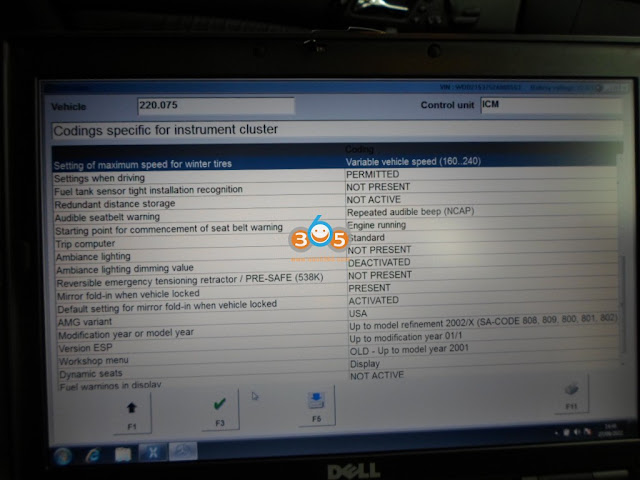
MB Star Mercedes SAM Coding 18

There we go, how hard was that.

Now, just take note every Car model is different, so for example there will be less or more codings depending exactly which car you are working on.

Earlier Platform Cars like R170 will use DAS for Motor Codings, (note there is a special procedure needed as the ME has to be unlocked), unlike a SAM, ICM etc which don’t need un-locked. There are other modules such as ICM on R170 that you have to access it’s Codings via the HHT Menus, that is kinda self explanatory.

Next upwards platform Cars like W220 are all DAS program Codings.

http://blog.obdii365.com/2023/03/13/mercedes-w220-sam-coding-with-mb-star-sd-c4/

2.26.2023

How to Activate Benz w204 VGS3 on Mercedes W211?

 Tutorial: how to replace the transmission gearbox VGS3 TCU of a Mercedes Benz W204 by the one from a W211.


Tools used:

CGDI Prog MB or VVDI MB

FVDI/AVDI/SVCI 2020

MB Star diagnostic MB SD C4/C5


Main procedure:


Procedures:

Step 1. Renew VGS3

Connect VGS module with CGDI MB.

Activate Benz w204 VGS3 on Mercedes W211 1

Read this used VGS3, which comes from a Benz W204.

Activate Benz w204 VGS3 on Mercedes W211 2

Get Erase Password, then erase it.

Read again to make sure it is not personalized and not activated.


Step 2. Flash VGS3

Connect FVDI2014/AVDI/SVCI 2020 to module, run software

Select

E-class / CLK>>W211 (As of 06/2006)>>Gasoline

Go to “Electronic Transmission Control”.

Identification. Same part number in CG MB.

Activate Benz w204 VGS3 on Mercedes W211 3

Click “MAKE VIRGIN” to load CFF file.

Activate Benz w204 VGS3 on Mercedes W211 4

When we get VIN later, we can write VIN on “Adaptation”.

Activate Benz w204 VGS3 on Mercedes W211 5

Then it will become a real module of W211 E-class.


Step 3. Coding VGS3

Connect SD C4 to module, and open DAS.

Go to “Control Unit Version” menu, here coding is NO Value.

Activate Benz w204 VGS3 on Mercedes W211 6

Development data>>Control unit adaptation>> Control unit adaptation (Variant Coding)>>SCN Variantencoding VGS 73

Select “YE9M” and confirm.

Back to “Control Unit Version” menu,

Select

Actual Values>>Drive authorization

All protection is No.

Activate Benz w204 VGS3 on Mercedes W211 7

Step 4. Activate

Transmission installed in the vehicle, no feel on gear now.

On DAS, go to

Control units>>Drive>>Transmission>>Actual Values>>Drive authorization

All 4 protections are No, since we use Abrites and CGDI MB.

Activate Benz w204 VGS3 on Mercedes W211 8

Back to “Transmission” menu.

Switch up the car again.

Go to

Control unit adaptations>>Detach the transport protection of control module ETC, personalize or activate the control module

Activate Benz w204 VGS3 on Mercedes W211 9

Activate ETC.

Activate Benz w204 VGS3 on Mercedes W211 10

Switch off the car.

Check Actual Values again.

All Yes.

Activate Benz w204 VGS3 on Mercedes W211 11

Credits to hesham essam.


http://blog.obdii365.com/2023/02/26/replace-mercedes-w204-vgs3-by-one-from-w211/