3.30.2022

Xentry Passthru with Openport 2.0 Pros and Cons

 The Tactrix OpenPort 2.0 has been confirmed working with xentry passthru version. What capabilities and limitations are with running Xentry on the Openport 2.0 interface?

Obdii365.com will discuss this topic.
Pros:
  • This combination is useful for ECUs with CAN capability.
  • It’s a good reasonably priced option if you don’t need to do any module updates.
  • The OpenPort 2.0 interface will allow Xentry to communicate with your Mercedes using the J2534 standard.  This will generally communicate with vehicles 2003 and newer that use OBD2 for diagnosis.
  • I have a Tactrix and it works great for most things however for flashing certain modules it doesn’t work as good as a more expensive J2534 device (Snap-on Pass Thru Pro II, CarDAQ Plus, J-Box) device or a C4/C5 etc, multiplexer.
  • I used it to run all of the A/C diagnostics on my car, recalibrate the vent control thumbwheels, test a few actuators, run the intercooler pump, and check the weight sensing system (which needs to be recalibrated), The only thing I can’t do right now is SCN coding and programming, which requires an active M-B account. For normal troubleshooting and diagnosis, though, it rocks.
Xentry Passthru with Openport 2.0 Pros and Cons 1

Xentry Passthru with Openport 2.0 Pros and Cons 2

Xentry Passthru with Openport 2.0 Pros and Cons 3

Xentry Passthru with Openport 2.0 Pros and Cons 4

Xentry Passthru with Openport 2.0 Pros and Cons 5

Xentry Passthru with Openport 2.0 Pros and Cons 6

Xentry Passthru with Openport 2.0 Pros and Cons 7
Cons: 
  • The Openport is missing some protocols so it doesn’t get to a point where it could brick a module.. It has no K-Line support and no CAN-L, so no ISO 14230 for SIM4 LE ECUs (M111Evo). Any vehicle using a 38-pin connector or HHTWIN for diagnosis will not work. You ideally use Xentry Pass-thru with these devices, and a subscription is available from Daimler, however it is limited to programming and reading faults from the engine ECU and transmission TCU up to 2017. 2018 and newer vehicles are given full diagnostic capabilities.
  • You are able to communicate with modules you need to but sometimes you will get error codes or the vehicle/computer doesn’t recognize the interface but after another attempt or 2 it will work.
  • Some of them have a OBD power supply bug. If you plug them into the OBD port without USB cable and no LED flash you got it, that means all power has to come from the USB cable which is not 100% reliable. (You have to choose the right Openport without power supply issue)
  • Openport 2.0 works with Passthru version only. does not work with MB SD C4/C5 standard OpenShell version.
  • Tactrix is missing some protocols so it doesn’t get to a point where it could brick a module. It’s a good reasonably priced option if you don’t need to do any module updates.
  • If you want to work with vediamo you can’t use vediamo 5 (4 can’t use smrd files) because vediamo 5 doesn’t support Passthru so your “stuck” with DTS Monaco


VXDIAG C6 also has some problems with the old K-line Mercedes. Stick with the C4 or if you want to spend a little more and do DOIP (command radio programming models 2016 and up ), the MB SD C4 DoIP. Clone will work fine along with Xentry Openshell. Passthru software only works with J2534 devices.


Related reading:

Xentry Passthru vs Openshell (incl. Xentry PT download)
How to set up BMW ISTA-D with Openport 2.0?

How to setup vxdiag vcx se with xentry passthru?

3.27.2022

MB Star Xentry OpenShell 2022.03 Released

 A new version of the Mercedes Benz MB Star diagnostic program V2022.03 OpenShell version is rolled out. The Mercedes-Benz Xentry Diagnostics program is designed to diagnose electronic control units and electrical equipment of any Mercedes-Benz cars. The program has a multilingual interface.


XENTRY Diagnosis OpenShell
Year/Release Date: 2022.3
Version: 22.3.3

All Xentry functions are available, including diagnostics, firmware/update of software modules and developer menus, as well as coding and programming modules in Mercedes, Maybach, Smart, Foton Daimler, BAIC, Bharat Benz and some others.


03/2022 Software List

  • Xentry 03.2022
  • DAS 03.2022
  • EPC 11.2018
  • WIS 10.2020
  • HHT-WIN
  • SDmedia offline 2014
  • Vediamo 5.01.01
  • Vediamo Database 2019
  • Star Finder 2016 & 2020
  • PL76
  • DTS Monaco 8.16.15 & 8.14, 2019
  • DisassembyAssistant
  • Support Languages: English, Croatian, Czech, Danish, Dutch, Finish, French, German, Greek, Hungarian, Italian, Japanese, Korean, Polish, Portuguese, Romanian, Russian; Spanish, Swedish, Turkish, Chinese.

Software in HDD or SSD format in Windows 10 Pro 64bit system

MB Star Xentry OpenShell 2022.03 software 1

Compatible device:

MB SD Connect C4MB SD C5Super MB Pro M6


2022.03 Software Images:

MB Star Xentry OpenShell 2022.03 software 2

MB Star Xentry OpenShell 2022.03 software 3

MB Star Xentry OpenShell 2022.03 software 4

MB Star Xentry OpenShell 2022.03 software 5

MB Star Xentry OpenShell 2022.03 software 6

MB Star Xentry OpenShell 2022.03 software 7

MB Star Xentry OpenShell 2022.03 software 8

MB Star Xentry OpenShell 2022.03 software 9

MB Star Xentry OpenShell 2022.03 software 10

MB Star Xentry OpenShell 2022.03 software 11


2.20.2022

How to Change Xentry App ID from 253 to 252?

 How-To: Install MB Star Diagnostic SD Connect C4 Xentry 2021-12 on Virtual Machine and change App ID From 253 to 252.


Firstly, a huge thanks to @webmaster, @gcs190, @pesona, @connector, @disinfetor, @cloud9atom, and many others who have helped us learn. 


HOW TO: Change Xentry App ID From 253 to 252 and Hide Virtual Machine

WHAT THIS FIXES: “No Access Authorization” on accepted Startkey, or Config Assist not accepting long key or short key StartKeys
  1. Go to your virtual image folder
  2. open notepad (Windows Key + R, “notepad“, enter.)
  3. Drag and drop your .vmx file for the image into notepad
  4. Add the following line at the end of the file: monitor_control.restrict_backdoor = “true”
  5. Save and close
  6. Open your Virtual Machine, goto to Xentry Config Assist et voila – your App ID is now 252!. You have prevented Xentry from detecting it is running inside a Virtual Machine

HOW TO: Properly Uninstall Old Versions of Xentry

WHAT THIS FIXES: Too many tools installed that are not compatible with each other. If Everything is a mess and you are unhappy
  1. Uninstall Xentry: Remove any old versions of Xentry through the windows uninstaller
  2. Clean up any old patches: by deleting Xentryapi.dll and/or Connector64.dll from C:\windows\syswow64 , C:\windows, C:\windows\system32 if exists
  3. Clean up registry: Windows+R key, “regedit”, enter. Navigate to HKEY_LOCAL_MACHINE\SOFTWARE\Microsoft\Windows NT\CurrentVersion\Windows and delete AppInit_DLLs and LoadAppInit_DLLs keys (they may have pointed to or referenced XentryAPI.dll or Connector64.dll)
  4. Clean up the previous keyguard: Navigate to C:\programdata\LicDir and make sure lic_key_2.dat is NOT set to Read-Only (right-click, properties on file). Delete lic_key_2.x4711 if it exists

HOW TO: Installing Xentry XPT 2021-12 in Virtual Machine VM:

WHAT THIS FIXES: Hopefully a Mercedes !! 
  1. If Not in VM: Disable Secure Boot in Bios
  2. If In VM: Modify VMX file as per above instructions (can be done anytime prior to using keygen)
  3. Download XPT or Xentry Files
  4. Install
  5. Run Fullfix v4 by @disinfetor in Administrator Mode (right-click the icon, run as admin)
  6. Restart PC
  7. Open Config Center, click next until Start Key Screen. Click Copy ID Button
  8. Right-click and Run as admin XentryKGdisMod – if given .dll not found error hit ok. Key will appear
  9. Go back to Config Center Screen, click manual, then paste using CTRL-V. Hit ok
  10. Choose your storage options (Deactivated etc.)


That’s it – you should now be able to start without “No Access Authorization”, No “2221-45 Error”, and No Login Screen all thanks to the work of multiple people on mhhauto forum and the disinfetor package!

Free download FullFix-Xentry-2021-12 v3

https://mega.nz/file/I4ZwGDJY#tcPmtlJmiFFzh8B-1AQvXK9-FI8L71LgN4yW2VYFTa8

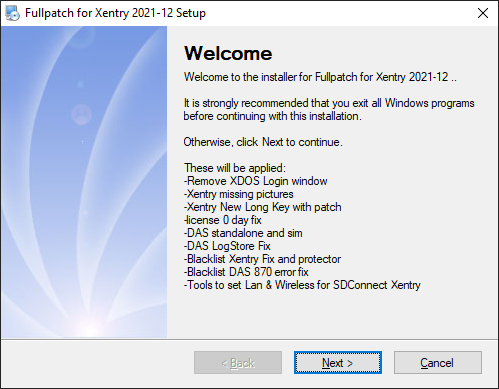
These will be applied:

-Remove XDOS Login window

-Xentry missing pictures

-Xentry New Long Key with patch

-license 0 day fix -DAS standalone and sim

-DAS LogStore Fix

-Blacklist Xentry Fix and protector

-Blacklist DAS 870 error fix

-Tools to set Lan & Wireless for SDConnect

Free download FullFix-Xentry-2021-12 v3

Please dissable antivirus. As it detects false positives.

changelog:
v4: fixed shortcut to the keygen.
v3: new modded xentry keygen with dll-patch and secureboot checker
v2: New modded keygen of xentry. Copy hwid to clipboard and run. The clipboard will be replaced with the key to be pased in xentry.

http://blog.obdii365.com/2022/02/20/change-xentry-app-id-from-253-to-252-and-hide-vm/

1.07.2022

Xentry Passthru J2534 Adapters and Test Report

 If you are looking for an J2534 interface that supports Xentry passthru and cost less then a MB SD C4/C5/C6 clone, these are popular j2534 passthru adapters.


  • vas-5054a
  • Openport 2.0
  • Mini VCI j2534
  • some other VCIs


To have J2534 interface work with Xentry:

  • Ensure the tool supports SAE-J2534/2 drivers.
  • Also ensure to buy / download Xentry PassThru version.


5054a:

Buy VAS--5054A for 60$ and use Xentry Passthru.

The VAS5054 is a good tool. They've used it with Xentry Pass Thru, Forscan, Techstream and Nissan Consult.

Same stuff as C4 connect but way cheaper.

Free download J2534 VAS 5054A driver for Xentry


Openport 2.0 

Buy a tactrix Openport 2.0 original or clone

OpenPort 2.0 clone:

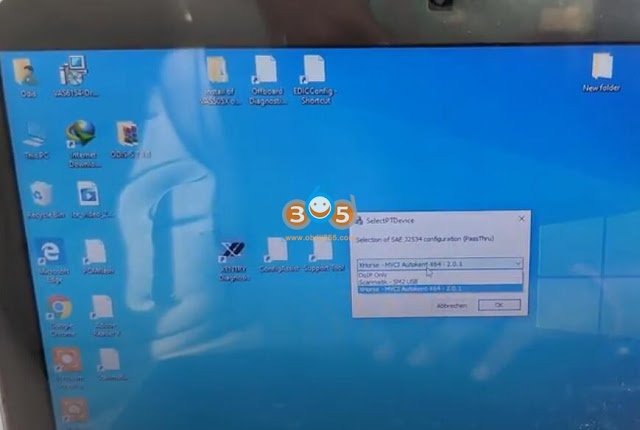
The OpenPort 2.0 is confirmed working with xentry passthru, one thing you should consider is that
1. you wont be able to access K-Line ECU's that are widely used in old models (W221, 220, 203, 211, 210)
2. i wouldnt trust that thing to be able to do ECU SW updates which can take hours cause you're risking of getting failed uploads and then potentially bricking your ecu
3. if you want to work with vediamo you can't use vediamo 5 (4 can't use smrd files) because vediamo 5 doesn't support Passthru so your "stuck" with DTS Monaco

so keep that in mind. but especially that these devices can be bought for 20-30$ makes them worth it imo at least to get into the whole system.

You'd better replace R1 by 47k for better operation and to avoid overheating.

Review

  1. I've installed Xentry Passthru 12.2020 and Tactrix Openport 2.0 CLONE. Successfully diagnosed W211. All modules are available including data and DTC reset functions.
    SBC and old ECU ME2.8 will not read. Other modules without a problem. The newer 211 (facelift) is also no problem. I can confirm this. Working 95 procent modules.
  2. DAS works fine, read modules, fault codes, erase, adaptation, reset control units on W639 Vito.
  3. XENTRY work fine and read 38-39 modules and fast comunication on W212. Output test, reset options, basic programming work fine.
  4. Xentry works fine, read 37 modules, fast data transfer on C205. Same features as W212.


Mini VCI J2534

You can even buy Toyota Mini VCI cable for 35$ and also use xentry passthru. Xentry is the same software that is used by dealer.  MINI VCI j2534 really works but you have to know that you can only do a scan. you can forget about programming but also the price between them is a big difference.

You need it to be connected to the virtual system and to have the drivers in it, Sometimes it is an option for the USB device to disconnect from the physical system and connect to the virtual one.

You can use mini vci, but you wont be able to access some modules and I dont think you will be able to access any car without CAN connection (dont quote me on that). I cannot access w203s, but 211, 204 works fine.
I can confirm that. I tested one and I couldn't access to all modules on W212.

From maybe 37 modules it accessed just 17 modules.

xentry passthru j2534 mini vci 1

xentry passthru j2534 mini vci 2

xentry passthru j2534 mini vci 3

xentry passthru j2534 mini vci 4

xentry passthru j2534 mini vci 5

xentry passthru j2534 mini vci 6

xentry passthru j2534 mini vci 7

xentry passthru j2534 mini vci 8

vas-5054a and Openport would be better choices. Openport sees more modules.

Tested two cables with a Mercedes:

W207:
Toyota Mini VCI Cable: 26 Modules
OpenPort 2.0 China Clone: 50 Modules

Both cables worked with:
Xentry Passthru 06.2021
Vediamo 4.02.02
Windows 10 x64

Not able to get passthru for Vediamo 5.01.01 at this time as it was not supported.


Xentry Passthru J2534 Collections and Test Report:


1) DICE (Volvo_VCI)
- Battery : OK
- Duration of the 5 steps : 1 min 44 sec
- Reading the control units : 22 Modules

2) Openport 2.0 (replace R1 by 47k for better operation and to avoid overheating)
- Battery : OK
- Duration of the 5 steps : 0 min 57 sec
- Reading the control units : 41 Modules

3) VAS 5054A
- Battery : NO OK
- Duration of the 5 steps : 0 min 55 sec
- Reading the control units : 41 Modules (for controller SAK or SAF-XC161CJ-16F40F)
- Reading the control units : 32 Modules (for controller SAK-XC167CI-XXXX)

4) Mini-VCI for Toyota (generic)
- Battery : NO OK
- Duration of the 5 steps : 2 min 10 sec
- Reading the control units : 20 Modules

5) Scanmatik
- Battery : OK
- Duration of the 5 steps : 1 min 01 sec
- Reading the control units : 41 Modules

6) Scanmatik 2 Pro USB
- Battery : OK
- Duration of the 5 steps : 0 min 51 sec
- Reading the control units : 50 Modules

7) Scanmatik 2 Pro Bluetooth
- Battery : OK
- Duration of the 5 steps : 2 min 41 sec
- Reading the control units : 50 Modules

8) GM MDI
- Battery : OK
- Duration of the 5 steps : 1 min 05 sec
- Reading the control units : 41 Modules

9) BOSCH KTS 560
- Battery : OK
- Duration of the 5 steps : 1 min 05 sec
- Reading the control units : 33 Modules

10) Mongoose Pro
- Battery : OK
- Duration of the 5 steps : 1 min 13 sec
- Reading the control units : 41 Modules

11) Dialink J2534 (blue case, with STM32F105 controller)
- Battery : OK
- Duration of the 5 steps : 41 sec
- Reading the control units : 41 Modules

12) VCM II (Ford/Mazda)
- Battery : OK
- Duration of the 5 steps : 1 min 05 sec
- Reading the control units : 41 Modules


13). Bosch KTS520

with firmware update.
DAS works fine, read all modules and functions. Live Data/Outputs test not good! Tested on W245, A168, A169

XENTRY doesn´t work on W212 and C205, after read the VIN, the software going out sad


14). Eucleia Wiscan T6

T6 passthru tested with Das/Xentry 03.2020 in Smart 451 EV.
Battery voltage OK.
Fast communication.
Adaptation, Specials functions and programming Works.

Eucleia T6 Passthru tested on w204 and w212.

Fast diagnostic, all modules tested. Adaptation, basic settings and Online SCN works.

Eucleia T6 Passthru tested on w221. Fast diagnosis, adaptations, reset and programming doors control units.

Eucleia T6 passthru: Tested on W176. Update Transmission control unit with Xentry Online. Fast and Safe.


We don't provide software, driver for cheap j2534 with xentry. If need xentry for c4/c5/c6, check here.

https://www.obdii365.com/wholesale/sd-c4-c5-c6-diagnostic-tools/


http://blog.obdii365.com/2022/01/08/benz-xentry-passthru-with-mini-vci-openport-or-5054a/

11.08.2021

Vediamo Code Mercedes W212 W204 X204 Turn Signal

 How to use MB  Star diagnostic Vediamo engineering software to code Mercedes W212 W204 X204 Turn Signal successfully.


Look, the turn signal flashes 3 times.

Vediamo Code Mercedes W212 W204 X204 Turn Signal  1


Now we are coding with Mercedes Benz Vediamo so that the turn signal blinks 4 or 5 times. Firstly connect a Mercedes diagnostic tool (i.e MB SD C4C5Benz DoIP C6 etc) to the car.

Vediamo Code Mercedes W212 W204 X204 Turn Signal 2

Vediamo Code Mercedes W212 W204 X204 Turn Signal 3

ECU Properties and then click on the three options to confirm the reset.

Vediamo Code Mercedes W212 W204 X204 Turn Signal 4

Vediamo Code Mercedes W212 W204 X204 Turn Signal 5

Vediamo Code Mercedes W212 W204 X204 Turn Signal 6


Click on “Coding” and then “Variant Coding”.

After selecting the options (shown as below), click on “ECU-Coding” and then “Continue to ensure the software calibration number (SCN) will be reset at some ecus when writing the varcode.

Vediamo Code Mercedes W212 W204 X204 Turn Signal 7

Vediamo Code Mercedes W212 W204 X204 Turn Signal 8

Vediamo Code Mercedes W212 W204 X204 Turn Signal 9

Coding complete, click on “exit ECU” of Vediamo software.

After coding, the turn signal flashes 4 times.

Vediamo Code Mercedes W212 W204 X204 Turn Signal 10


www.obdii365.com

11.01.2021

Enable Mercedes Remaining Fuel in the Tank with Vediamo

 Today, I will show you how to use Benz Vediamo engineering software to turn on the function of the remaining fuel in the tank on a Mercedes W212, W204, X204, W218 etc.


Plug a Mercedes Benz diagnostic tool (i.e MB SD Connect C4C5, Benz DoIP C6 etc) to the car.

Enable Mercedes Remaining Fuel in the Tank with Vediamo 1


Prepare to Enable Hidden Mode Remaining Fuel in the Tank in Liters.

Enable Mercedes Remaining Fuel in the Tank with Vediamo 2


After installing Vediamo engineering software, open the “Start Center 04.02.02”, then click on “Vecoute”.

Enable Mercedes Remaining Fuel in the Tank with Vediamo 3

Enable Mercedes Remaining Fuel in the Tank with Vediamo 4

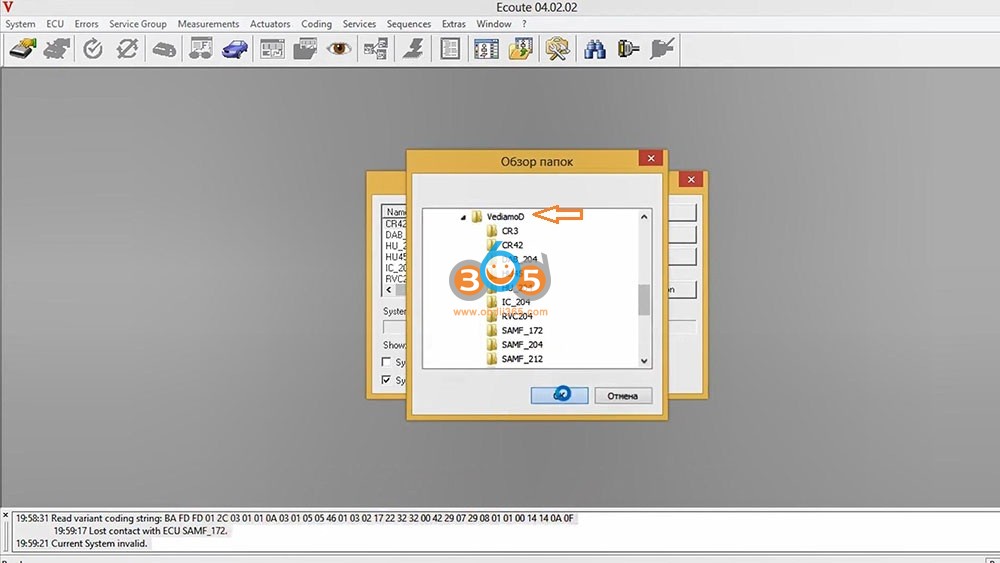
Enter “System Selection”, tick off ” System based on DIOGENES data (.cbf files), and then click on “Change Folder”, then “VediamoData”, then “Vediamo” and “Ok”.

Enable Mercedes Remaining Fuel in the Tank with Vediamo 5

Enable Mercedes Remaining Fuel in the Tank with Vediamo 6

Choose “IC_204”, the list of CBF file for other models will be here:

BF IC204 – Mercedes W212 (E), W204 (C), X204 (GLK), W197 (SLS), W218 (CLS)

CBF IC213 – Mercedes W205 (C) facelift, W217 (CL) facelift, W222 (S) facelift, W213 (E), W238

(CLS), X253 (GLC) facelift, W257 (E Cabrio), W463 (G)

CBF IC177 – Mercedes W177 (A), W118 (CLA), W167 (GLE), W213 (E) facelift

CBF IC222 – Mercedes W205 (C) preface, W217 (S Cabrio) preface, W253 (GLC) preface,

V222 (maybach), C190 (AMG GT), W447 (V)

CBF IC172 – Mercedes W463 (G), W166 (GLS/ML), W292 (ML), W176 (A), W246 (B), W156 (GLA),

W117 (CLA), R231 (SL), R172 (SLK), X204 (GLK)

Enable Mercedes Remaining Fuel in the Tank with Vediamo 7


Click on the third icon (in red circle below) and then “ECU” option to select “Manual Command Input…”

Enable Mercedes Remaining Fuel in the Tank with Vediamo 8

Enable Mercedes Remaining Fuel in the Tank with Vediamo 9

Input “22 01 08” under request message (Hexadecimal), then click on “Send”.

If here you have 20, 30, 40 etc. then this function is disabled for you.

Enable Mercedes Remaining Fuel in the Tank with Vediamo 10


To write the code and enable the function, 2E and add 2 (that is, there will already be 32).

Enable Mercedes Remaining Fuel in the Tank with Vediamo 11

Enable Mercedes Remaining Fuel in the Tank with Vediamo 12

Expand menu of ECUs.

Enable Mercedes Remaining Fuel in the Tank with Vediamo 13


Click on the fourth icon “Exit ECU contact”.


Next step is to back to the car, insert the key into the ignition and turn on.

Enable Mercedes Remaining Fuel in the Tank with Vediamo 14

Ok, job is done! This is a very useful feature.

Enable Mercedes Remaining Fuel in the Tank with Vediamo 15


Good to know:

MB SD C4, C5Benz DoIP C6 all comes with Vediamo engineering software.

http://blog.obdii365.com/2021/11/01/vediamo-enable-hidden-mode-remaining-fuel-in-the-tank-on-mercedes/

10.13.2021

How to Change 6/2021 DAS Xentry Win10 Language?

 Topic: How to change the language on 6/2021 DAS Xentry windows 10. Here are all the steps to follow, hope it helps. FYI, DAS / Xentry default language is English when you open the software.


obdii365.com engineer replied:

  1. The method to change DAS language: right click on “DAS” icon, enter “Properties”, then if you can see the file name with “-LXX (XX means the language Abbreviation) and then directly change XX as the language you need ( for example: EN, FR, DE, IT, RU, etc)


  1. The method to change Xentry language:

Enter the Xentry software to change.


What about users’ working method?

If anyone downloaded pre-installed Xentry VM or they just want to change the language selected at initial install, you can do it the following way:


1) Go to Start Menu > Run
2) Type in “regedit” and enter
3) Navigate to

“HKEY_LOCAL_MACHINE\SOFTWARE\WOW6432Node\Mercedes-Benz\Settings”
4) Change the binary “Language” key value to EN, FR, DE, IT, RU, etc or whatever language code you want
5) Navigate to

“HKEY_LOCAL_MACHINE\SOFTWARE\WOW6432Node\Mercedes-Benz\Installation Framework” above it
6) Change the “DAI_Language” key to the same language code
7) Close regedit and reboot.

This will globally change the language for your installation in SD Connect, AddOn Center, ConfigAssist, etc but you will still need to change the language in Xentry through the menu’s inside the program.


Might be different on different OS’s but I think the key names should be the same. Changing the shortcut with the “-len” extension didn’t work for me. Hopefully it will help someone else in the same situation!


Moreover:

If you also need to change all windows 10 in English use sysprep.exe in c windows system sysprep sysprep.exe
all next next next just select language English and when asks for user give it default as name and no password
after install you can delete the user default.

change 2021/06 xentry language

Question: I want to change the language on 6/2021 DAS windows 10.

I followed the above steps, it did not work, also the short cut does not have “|en” at the end of the command line to change the language.


Possible reason and solution:

first you need to change the language on the Xentry setting and open DAS via xentry.


Or I think what worked for me is by changing the system locale to English, not only the windows display language.


Alright, if you have any issues on 2021.06 DAS Xentry software running with MB SD C4 DoIPBenz C6C5 etc, contact at https://www.obdii365.com/ (Whatsapp:+86 18259252285) for assistance.