Showing posts with label vediamo. Show all posts

3.13.2023

Mercedes VGS2 Virgin Modified CBF Download

 The CBF file will help people who have no tools to virgin 7G-tronic VGS2 unit.  If you changed the TCU VGS2 control unit, you can use this vgs2 virgin solution using vediamo.


Years ago I found a bug in 722.9 software, which allows to virginise the VGS2 units without need to calculate “sonderhash” or anything else. It is a reference to diagnostic procedures that are not implemented in the CBF files, but exist in the TCU code. So it is possible to call a normally inactive functions which remove personalization, activation and set transport protection on. To make it easy to use I modified original CBF so that this function can be performed just with one mouseclick.  I use it till now mainly to exchange broken VGS2 with used but good ones.

This solution affects all 2nd generation units (VGS2) with part number A 0335457332. Unfortunately, this “feature” does not work on VGS3 units because their EEPROM memory is double sized and TCU code cannot properly execute internal procedures. So it will not work on 3rd generation units with part number A 0034460310. However, in many cases and cars produced even after year 2008, which was factory equipped with VGS3 you can still use VGS2 as replacement.

To connect with TCU you need to have also normal VGSNAG2.cbf file. So if you have already Vediamo (no matter which version and which MB Star MUX) you just need to replace your vgsnag2.cbf file with modified one and you will be able to bring your VGS2 units in virgin state. After that, to make them than fittable to any 722.9 gearbox, you should flash them with correct software, set right SCN coding and relearn range sensor. All this is possible using Vediamo offline.


Free download VGS2 NAG2 Modify CBF File


This will work on any vgs2 conductor plate. Erasing of personalisation and activation on 7G-Tronic TCU with part number A 033 545 73 32 by Vediamo only. No need to calculate hash or security access.

Using this VGSmod2.cbf file you must be also able to establish communication with TCU by pressing F3 button. It you have no connection – check cables, CAN resistor or interface (MUX).

After you are connected, press F6 button on your keyboard – it should read DTC faults. Than you can press the button safe data.
Do the same with with F7 button.


Credit to gearbox.expert from mhhauto.


Here’s the step by step guide to virgin VGS2 TCU with Vediamo

How to Virgin VGS2 TCU Mercedes 722.9 via Vediamo?

10.19.2022

Mercedes CRD3 Checksum Bypass Solution by Vediamo

 This is common on Mercedes Benz crd3p.b0, crd3p.e1 and other crd3 ECUs. After writing file with wrong checksum, car start but only once, after you turn ignition off and on it’s continuously off and on 87 kl. relay.


To fix this problem you can bypass checksum checking. Follow the method below. All work takes place in the MB SD C4 DoIP Vediamo software.

Free download CRD3_DEV.CBF

1) In vediamo load CRD3_DEV.CBF
establish communication.

2) In function do

FN_SG_Entriegeln_9A

FN_SG_Entriegeln_BC

3) go to variant coding

4) do cpc nicht vorhanden as on the picture

5) reset ecu

Mercedes CRD3 Checksum Bypass Solution by Vediamo


7.22.2022

Enable M Mode/A Mode 7G 722.9 722.6 Gearbox with Vediamo

 This is a contribution on how to enable/activate the automatic transmission Agility (A) and Manual (M) Modes on Mercedes W211, W212, W204, W207 X204 7G Gearbox 722.9xx and 722.6xx series using Vediamo


The fact is that the control unit has modes:
C - Comfort
S - Sport
M - Manual (deactivated)
A - Agility (deactivated)

The (M) Manual mode is used if the steering wheel has paddles. But (A) Agility is apparently a mode that they did not use on bananas. This is essentially Agility Lite without half the features. But the mode is interesting. Many activate it and notice the interesting work of the box. In general, what we need:
1) Cable (Tactrix Openport 2.0, VXDIAG VCX SE or an MB SD C4 DoIP)
2) Vediamo

*How to configure Vediamo with Openport? 


Procedure:

- Connect the equipment
- Run Vediamo (in the settings we set to display data in HEX)

Enable M Mode/A Mode 7G 722.9 722.6 Gearbox with Vediamo 1

Vediamo Options
Enable M Mode/A Mode 7G 722.9 722.6 Gearbox with Vediamo 2

ECOUTE options - Format of the Variant Coding String - Hexadezimal(Hexadecimal)
 

- Load the box file: VGSNAG2.CBF (For 7G)
- Load the box file: EGS52.CBF (For 5G)
- Load the box file: EGS53.CBF (For 5G rest)
- Connect to the module
- Go to encoding (Coding->Variant coding)

VGS NAG2
- Select in the drop-down list "VCD_SCN_Variantencodierung_VGS_73"

Enable M Mode/A Mode 7G 722.9 722.6 Gearbox with Vediamo 3

Parts pictured: C1001B , 030200

EGS52 / EGS53
- Select "SCN_Codierung_PKW" in the drop-down list

Enable M Mode/A Mode 7G 722.9 722.6 Gearbox with Vediamo 4

Spare parts on the photo: 01010100 , 0000000002, 3200001

- Click the button below "Manual Coding"

Enable M Mode/A Mode 7G 722.9 722.6 Gearbox with Vediamo 5

Spare parts on the photo: 030200 , 1803C6 , 313029 , 2212019

- We see a string with a length of 42 bytes, we are interested in bytes:

VGSNAG2 Byte
count from 1 as in Vediamo
[Byte 27] for option 0401
[Byte 30] for option 0403
Bit 4: Mode "A"
Bit 5: Mode "M"
Bit 6: Mode "S"
Bit 7: Mode "C"

[Byte 29]
Bit 5: Paddles

EGS52 Byte
count from 1 as in Vediamo
[Byte 29]
Bit 5: Paddles

[Byte 30]
Bit 2: Mode "CS"
Bit 3: Mode "M"
Bit 4: Mode "A"

EGS53 Byte
count from 1 as in Vediamo

[Byte 28]
Bit 2: Mode "CS"
Bit 3: Mode "M"
Bit 4: Mode "A"

Now we need to calculate the checksum. These are the last two bytes in line 41 and 42. Type: CRC16. We take and copy all bytes from number 01 to 40 inclusive, we take WinHex or an online calculator on the Internet there are a lot of them. Enter a string and read the CRC. For example, if it is 0x2211 then byte 41 will be 0x11 and byte 42 will be 0x22.
In order not to make a mistake with the algorithm, first take the line in the original and calculate CRC16, it must match the one in bytes 41-42. If everything is OK, then you can safely change the byte and recalculate the CRC.
- Click ECU-Coding. The data will be recorded in the automatic transmission. If everything is OK, then it will write in the log that everything was successful.

Enable M Mode/A Mode 7G 722.9 722.6 Gearbox with Vediamo 6

Parts pictured: 030200, F10018 , C1001B

- We exit the coding and on the left select "Function -> FN_ECU_Reset" in order to reload the block with new parameters. We turn off the connection.

Enable M Mode/A Mode 7G 722.9 722.6 Gearbox with Vediamo 7

Parts in the photo: 030200

- Turn off the ignition, turn it on and watch the new modes.

PS As they say in such cases, if you are going to repeat, then you do all this at your own peril and risk. We are not responsible for the consequences caused by any actions. Be careful when changing bytes. They say that extra spaces between them can turn a box into a brick!

Credit to Mr. klenov.

http://blog.obdii365.com/2022/07/21/activate-m-mode-mercedes-7g-722-9-gearbox/

7.20.2022

Download and Configure Vediamo 4 with Openport 2.0

 You cannot use Vediamo 5 with Tactrix openport 2.0 because 5 does not support passthru so you need to install Vediamo 4 with openport (Check Openport Xentry Pros & Cons).

Configure Vediamo 4 with Openport 2.0 1

Here are the tips on installing and configuring Vediamo with OpenPort 2.0 + trendy Agility mode.


Found on the Internet the Vediamo v04.02.02. and Vediamo Data files (password for archives 123). It is in this version of Vediamo that Part J is supported, i.e. the ability to connect PassThru devices. 

To do this, change the device name (DeviceName) in the slave.ini file (C:\Program Files\Vediamo\Caesar\drivers). Since I already have drivers for OpenPort 2.0 on my laptop and the DAS Xentry program is installed, I just followed the path (C:\ProgramData\Mercedes-Benz\config\Xentry\caesar\driver\slave.ini) and copied from the file slave.ini section “J” data. It turned out like this: DeviceName=“Tactrix Inc. – OpenPort 2.0 J2534 ISO/CAN/VPW/PWM”

Configure Vediamo 4 with Openport 2.0 2

After that, on the Vediamo server tab, I pressed UPDATE, unchecked all the checkboxes and left only a checkmark in front of point J.

After all the manipulations, the Vediamo program saw OpenPort 2.0, but refused to connect to the car. It turns out that by default I have the KLine connection type in the Vediamo settings, so I did this: I went to Ecoute, selected the EGS52.CBF file I needed from the Vediamo Data folder, then right-clicked on the line displaying the EGS52-<basisvariante> (KLine 1 OpenPort 2.0 J2534, etc.), clicked on the properties item and changed the connection type from KLine 1 to CANHS1 and got the line EGS52-<basisvariante>(CANHS 1 OpenPort 2.0 J2534, etc.) .

Configure Vediamo 4 with Openport 2.0 3

Kline
Configure Vediamo 4 with Openport 2.0 4

CANHS

After that, Vediamo connected to the car without any problems and I read my encoding.

Configure Vediamo 4 with Openport 2.0 5


http://blog.obdii365.com/2022/07/20/configure-vediamo-with-openport-2-0/

11.08.2021

Vediamo Code Mercedes W212 W204 X204 Turn Signal

 How to use MB  Star diagnostic Vediamo engineering software to code Mercedes W212 W204 X204 Turn Signal successfully.


Look, the turn signal flashes 3 times.

Vediamo Code Mercedes W212 W204 X204 Turn Signal  1


Now we are coding with Mercedes Benz Vediamo so that the turn signal blinks 4 or 5 times. Firstly connect a Mercedes diagnostic tool (i.e MB SD C4C5Benz DoIP C6 etc) to the car.

Vediamo Code Mercedes W212 W204 X204 Turn Signal 2

Vediamo Code Mercedes W212 W204 X204 Turn Signal 3

ECU Properties and then click on the three options to confirm the reset.

Vediamo Code Mercedes W212 W204 X204 Turn Signal 4

Vediamo Code Mercedes W212 W204 X204 Turn Signal 5

Vediamo Code Mercedes W212 W204 X204 Turn Signal 6


Click on “Coding” and then “Variant Coding”.

After selecting the options (shown as below), click on “ECU-Coding” and then “Continue to ensure the software calibration number (SCN) will be reset at some ecus when writing the varcode.

Vediamo Code Mercedes W212 W204 X204 Turn Signal 7

Vediamo Code Mercedes W212 W204 X204 Turn Signal 8

Vediamo Code Mercedes W212 W204 X204 Turn Signal 9

Coding complete, click on “exit ECU” of Vediamo software.

After coding, the turn signal flashes 4 times.

Vediamo Code Mercedes W212 W204 X204 Turn Signal 10


www.obdii365.com

9.22.2021

Benz Start/Stop ECO Coding with MB SD C4

 How-to: disable Mercedes 2005 to present Start/Stop ECO feature via coding using both Vedamo and DTS Monaco engineering software program.


Preparation:


1.Benz J2534 passthru or Xentry Passthru. MB Star diagnostic system is recommended because it is Mercedes benz’s official diagnostic software for Mechanics. MB SD Connect C4 is still an excellent adapter but it can do a few more things, such as flashing on a dead ECU over DoIP.

2.Vediamo 4.2.2 or version 5.x. It comes with SDConnect C4 hard drive (HDD). It’s more advanced software than Xentry. Vediamo 4.2.2 was released in 2012. There is Vediamo 5.x but you need SD C4/C5 to use 5.x Vediamo.

3. DTS Monaco 8.16. Another engineer program comes with MB SD C4 hard drive.  It’s more advanced software than Vediamo.

4. Seed key calculator. You can find free software online.

There is an open source application, MBSeedKey, https://github.com/Xplatforms/mbseedkey/releases/ This application doesn’t include DLL files though. So, you need to find DLLs. Do google, and you will find them with easy. Put the DLLs in the lib sub-folder (Example: C:\MBSeedKey\lib\*.dll or C:\MBSeedKey\dlls\*.dll or C:\Program Files (x86)\MBSeedKey\lib\*.dll …).

5. A laptop. They have got a C4+HDD+laptop package. software is pre-installed and ready to use. The downside is that the old laptop is slow. You can use any latest laptop you have.

Recommanded PC: (Windows 10, 64bit Intel/AMD CPU, 8GB RAM, 100GB free space SSD)

Installation

Install Xentry XDOS, Vediamo, DTS Monaco and Seed Key Calculator

If you using J2534 passthru (Openport etc), you also need to install J2534 driver, Pass Thru library, activate Vediamo and DTS (do Google).

MB C4/C5 adapter kit can make work easier.

If use J2534 adapter, to make Vediamo 4.2.2 work with a J2534 pass thru adapter,
6. Edit “C:\Program Files (x86)\Vediamo\Caesar\driver\slave.ini”.
7. Find section “[PartJ]” and replace “DeviceName” with your Pass Thru adapter’s name. For example, DeviceName = “Softing – VAS5054A#XXXXXXXX”.
8. I don’t know my adapter’s name? It’s in the windows registry. Or, run Xentry, then xentry will pop up a dialog to let you select a pass thru driver. Type the name in the slave.ini
9. Run Vediamo 4.2.2, and click on “Update” button. Select “Part J” only (unselect all others), click on “Update”.


Disclaimer: Credit to realeric from MB forum.  The tutorial here is for sharing purpose. You are at your risk.


Let’s get started. 


Connect C4 with laptop and vehicle via OBD port

Run Xentry software

Do a quick test.  Does it run? Yes ==> go to next step. No ==> you are doing something wrong, go back.

Turn on ignition switch (don’t run the engine) when you are doing the coding. Don’t press brake pedal and press the start button two times, or turn the key two click.

Always connect an AC-12V charger to the battery in case of battery drain. To save battery, turn off headlight, room lights, HVAC fan.

Let’s Find the Control Unit Name

You are going to disable Start/Stop ECO. Main Engine ECU/Controller controls “Last Mode / Default On / Default Off”, and front SAM controls “Default On / Default Off”. “Last Mode” will be better than “Default On”. So, let find the control unit name (ID) of the Main Engine ECU controller. The control unit name varies depending the vehicle model.

1. Run Xentry. Select Diagnosis.
2. Search “Motor electronics … for combustion engine … ” (or similar items).

Benz Start/Stop ECO Coding with vediamo 1

3. Search “Control unit variant”.
4. It’s MED40 in this vehicle (example). So, let’s do “variant coding” of MED40.


Let’s Do It.

How to Disable Start/Stop ECO with Vediamo?

1. Run Vediamo. Click on “Ecoute” application.
2. Click on “Select…” (1st icon on the top menu)

Benz Start/Stop ECO Coding with vediamo 2


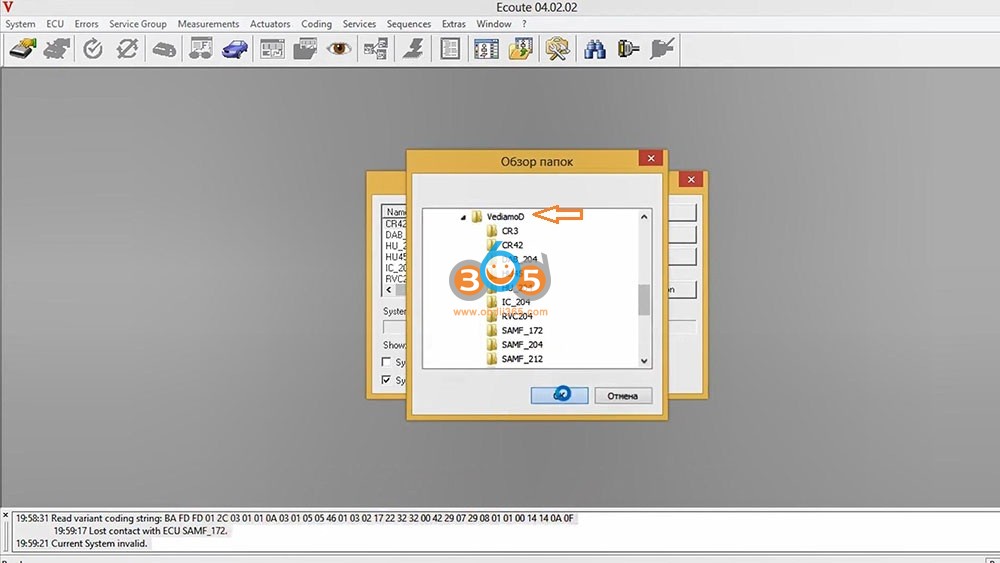
3. On the dialog, check *.cbf and click on “Change folder”
4. Where are *.cbf files? It’s in Xentry. (Vediamo and DTS Monaco use *.cbf, *.smr-d files in Xentry).
5. Select “C:\Program Files (x86)\Mercedes-Benz\Xentry\MB_PKW\Caesar\cbf”
6. Choose “MED40” on the dialog and click on “OK”

Benz Start/Stop ECO Coding with vediamo 3

7. Now the window shows “MED40”, “System:MED40” / “ECUs” / “MED40 – xxxxxx”
8. Right click on “MED40 – xxxxx..” and select “Properties”
9. Change the connection to “xxxxxxx…… HSCAN_UDS_500”. Always choose “500”. Click on “OK”
10. Click on “Initiate ECU Contact” (3rd icon on the top menu)
11. Select “Code the variant of an ECU” (11th icon on the top menu)
12. You will see the “Variant Coding – MED40” dialog.

13. Select “VCD_Implizite_Variantenkodierung” on the dialog. It’s German, not English. Don’t panic.
14. Find “Betriebsstrategie Stopp Start”. Click on it with mouse.
15. You will see “Stopp Start Standard Logik, Default ON” on the right panel.
16. Select “Stopp Start Standard Logik, Last Mode” with mouse.

17. WARNING. STOP HERE, Take a break.
18. Click on “Save to Files”. This saves current parameters in a sub-folder, “MED40”, i.e., “C:\Program Files (x86)\Mercedes-Benz\Xentry\MB_PKW\Caesar\cbf\MED40\YYYY-MM-DD.html”. If something goes wrong, you can recover current states with this file.
19. Go to the folder, verify if it’s saved well. Double click on the file (*.html) and you can see the the content coding (parameters).

20. Click on “ECU-Coding”
21. It will show “warning: SCN number can be erased……”. Ignore it.
22. Click on “OK” (or go or proceed… anyway).
23. It will fail. Don’t worry. It’s normal. It happened because you didn’t have enough “access level to the ECU” for the variant coding.

24. Select a menu on the top menu, “ECU” / “Manual Command Input …”

Benz Start/Stop ECO Coding with vediamo 4

25. Type “27 0B” and click on “Send” button. Why 27??? What is 0B??? It means “Hello ECU, would you let me know a temporary PIN to generate a seed key for access level 0B?”
26. ECU will answer back “67 0B BF DF 6F 37“. It means “Hi, the temporary PIN is BF DF 6F 37 for access level 0B (= required level for sensitive variant codings).
27. Run “MBSeedKey”. Change DLL folder if the DLLs are not in dlls sub-folder.

Benz Start/Stop ECO Coding with vediamo 5


28. Select “MED40_MED40_…….dll”. Why should I need to select a dll file? Mercedes hided a different seed key algorithm in each DLL. The key calculator simply use the algorithm. So, it needs to know which dll is going to be used. If you choose a wrong dll, the key generator will answer a wrong key, and the ECU don’t allow you to pass. Therefore, you can’t make mistake. Don’t worry.

Benz Start/Stop ECO Coding with vediamo 6


29. Select 0B on Access Level. (There are access levels, such as 1, 3, 5, 9, B. To do EURO6 emission related variant codings(parameter change), 0B access level is required)
30. Type “BF DF 6F 37” (for example) on SEED:, and press “Generate Key”.
31. Key will be displayed “9B 1A 69 C0” (for example).

32. Go back to the vediamo.
33. Type “27 0C 9B 1A 69 C0” on the Vediamo / Manual Command Input… / Request Message and click “Send”
34. ECU must answer back “67 0C“. It means “Ok, you are allowed to 0B level”. If the ECU answer other than 06 0C (for example, 0x7F ….), you did something wrong – go back to step 28.
35. Close the “Manual Command Input…” dialog

36. Open the previous “Code the variant of the ECU” again.
37. Do the STEP 11 ~ 16 again.
38. Click on “ECU-Coding”
39. It will go through. If not, you did something wrong.

40. Click on “Save to Files”. It will save parameters “after” coding. You can compare before/after data to see which parameters were changed.
41. On left tree window, click “System: MED40 / ECUs / MED40 – xxxxx / Function”. You can see “FN_HardReset”

Benz Start/Stop ECO Coding with vediamo 7

42. Double click on “FN_HardReset”. It will make the MED40 reload the parameters you modified.
43. Click on “Exit ECU Contact” (4th icon on the top menu).
44. Close Vediamo program.

You done. Be careful, don’t change any parameters until you know 100% what it is and 100% sure if you are correct.


How to Disable Start/Stop ECO with DTS Monaco 8.x?


DTS Monaco 8.x is more advanced software than Vediamo 4.x or 5.x, and good news is DTS Monaco 8.x works with J2534 Pass Thru adapters.

It’s almost the same with Vediamo 4.2.2. Vediamo 4.2.2 use *.cbf files included in Xentry but DTS Monaco 8.x use *.smr-d files included in Xentry. *.smr-d is newer version of *.cbf, i.e., *.smr-d = *.cbf + *.dll. You can extract the *.dll from the *.smr-d. The DLLs used for the seed key calculator was extracted from the *.smr-d. You can extract it yourself… but someone already did it for you. DTS Monaco 8.x also support *.cbf but only with SD C4 or DoIP adapters. Since you have a J2534 adapter, you can’t use *.cbf in DTS Monaco 8.x. That’s fine as *.smr-d is newer version of *.cbf. You don’t lose anything.

Where is *.smr-d files? It’s in “C:\Program Files (x86)\Mercedes-Benz\Xentry\Kontexte\ODXProjekte\PKW_COMMON\dbr”. You don’t need to beg the files. You already have them.

(1) Install DTS Monaco, activate it, (2) run system configuration, (3) add J2534 adapter, (4) create a project, (5) add control unit modules to the project, (6) close system configuration, (7) create a new workspace from the project : do google or watch youtube. There are many videos.

Here is what others don’t say to you:

8. When you open the workspace, you will see the below screen.
9. Select “MED40” on the quick test tap, and click “Start” to do the quick test. Does it work? It should work. If not, you are doing something wrong. Go back…
10. Do the things on the below image.
11. WARNING. Before doing the coding, save current parameters to a file (“Coding Set” / “Save”)

Benz Start/Stop ECO Coding with dts monaco 1

12. You need to get access level 0B to do the Euro6 emission related variant coding. Do the following things on the below image.
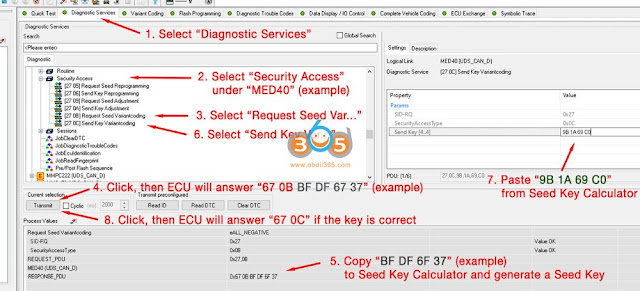
Benz Start/Stop ECO Coding with dts monaco 2

12. Click on “Do Coding”. It will go through.
13. Reset the control unit (Select, Diagnostic Service -> MED40(example) -> Ecu Reset -> [11 01] HardReset Reset, and click on “Transmit”)
14. Done.

Don’t pull the trigger until you sure 100% what you are doing.

http://blog.obdii365.com/2021/09/22/disable-mercedes-start-stop-eco-with-vediamo-and-dts-monaco/

9.03.2021

How to do Programming Online for Mercedes Cars with SD C4?

 A common question: Does anyone have a solution for how to do programming online for Mercedes cars?


obdii365.com replied:

Online programming:

Original online scn coding and authorization ID account from the original Mercedes is required. C4 clone is not possible because MB banned it worldwide. Don’t waste your time.  Go offline programming instead.

Offline programming:

You can do offline programming with SD C4 & DAS offline with database or with Vediamo /DTS Monaco (with calibration files).


How to set up Vediamo or Monaco for SDconnect C4 DOIP ?

I have a successful case to share with you (Credits to @ karakan08).


Recently I have modified my SDconnect C4 DOIP.

With the current config on my StarPC, vediamo is doing his job perfectly over WIFI.

It is detecting the C4 with DOIP – of course I need to connect my LAN cable to the MUX if I really do need to use DOIP.

Vediamo setup:

CBF side:

mb-sd-c4-vediamo-1


SMR side:

mb-sd-c4-vediamo-2


This is my current in DTS Monaco:

CBF Side:

mb-sd-c4-vediamo-3


SMR Side:

mb-sd-c4-vediamo-4


Related Operation Guide:

Mercedes Benz DoIP Hu5 Hu6 Hu7 coding / programming with DTS Monaco 8.13.


If you are unfamiliar with Vediamo or Monaco, it’s time to leave the known territory behind and start learning new stuff!

Look at Moe Vediamo + DTS Monaco Engineer System Training Books

vediamo-dts-monaco

It is packaged with 1pc * DTS Monaco Engineering Software Training Book

1pc* Vediamo Engineer System Training Book

vediamo-vs-dts-monaco


Use LAN cable or Wifi for DOIP?

I have only used the LAN cable for DOIP (because it is a requirement), for wifi it is not so stable.


Someone feedbacked “DTS Wifi work only with the new variant of clone (“XC4Plus or sd connect c4 Plus“).
DOIP Setting C4 DTS see images below. Don’t forget press the “ethernet Activation” than.”

dts-monaco-connection-1

dts-monaco-connection-2

This is not true . Sd c4 work by wifi DTS monaco must only transfer Toolkit folder from Xentry to DTS and all work perfect.

Besides, you should have proper ip and proper serial number for doip. Here you for for sdconenct C4 DoIP setting procedure:


Related Operation Guide:

How to Configure MB SD Connect C4 Plus DoIP Wifi Wireless Connection?


Okay, www.obdii365.com offer the remote assistance service if you have any question on programming with Vediamo / Monaco for sdconnect c4 plus.


Have a good day!

http://blog.obdii365.com/2021/09/03/programming-online-for-mercedes-cars/

7.08.2021

Change Benz Speed Limit with Vediamo and DTS Monaco

 I want to unlock the Mercedes Benz factory top speed limit which is 250km/h. Which program can I use to unlock it? and how to remove the speed limit set from the factory? Check tutorials below:


Which program?

MB Star DAS/XENRTY: No

Vediamo: Yes

DTS Monaco: Yes


You could do them offline using Vediamo or Monaco but from an experience you better of with MB SD Connect C4 or VCI multiplexers to used those software. Meanwhile, you will need special CBf/Vsb/smr file or seed-key calculated to get the required access to the ecu and cpc. Some people can help you with that calculation. Unfortunately, we don’t.

In a word, you will need Vediamo/DTS together with the correct files (vsb w cbf) or regular file with seed key (bought) to gain access for coding.


Vediamo Guide

DTS Monaco Guide


How to change/disable speed limit (Vmax) on Mercedes with Vediamo?

Example on MED40 engine.

change-benz-med40-vmax-vediamo-1


In Vediamo software, select V Ecoute

change-benz-med40-vmax-vediamo-2

Upload a CBF file that you have saved on desktop

change-benz-med40-vmax-vediamo-3


Got the engine module on your car
For example on this car it is MED40,  (unlock me97 will not need calculator )
Right-click ECU and go to Properties

change-benz-med40-vmax-vediamo-4

Select interface,
Select ECU – manual command input

change-benz-med40-vmax-vediamo-5

We send the command 27 0B
open Seed Calculator

change-benz-med40-vmax-vediamo-6

We write 4 bytes and get the code to send

change-benz-med40-vmax-vediamo-7

change-benz-med40-vmax-vediamo-8

Press Generate to generate a key

change-benz-med40-vmax-vediamo-9

Copy and paste 4 bytes of the key and paste to vediamo

change-benz-med40-vmax-vediamo-10

change-benz-med40-vmax-vediamo-11

27 0C write code
Send command again
Access is open
Go to Variant coding

change-benz-med40-vmax-vediamo-12

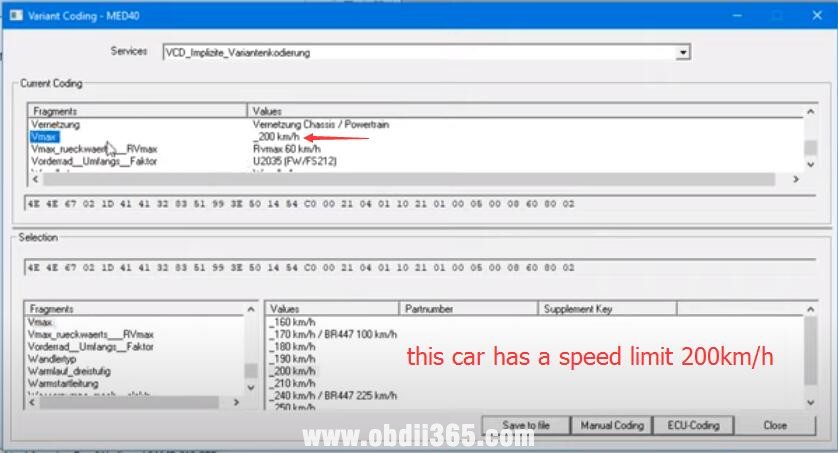
Select VCD- Vmax

change-benz-med40-vmax-vediamo-13

From the factory the car has a limit of 200 km/h

change-benz-med40-vmax-vediamo-14

We change the speed limiter to 250km/h, press ECU coding.

change-benz-med40-vmax-vediamo-15

Coding success. VMAX (Factory Speed Limiter) was changed.


If it is ME97 engine, the procedure is easier, does not require seed calculator.

Select ME97 engine
Click sub-options to select “Function”
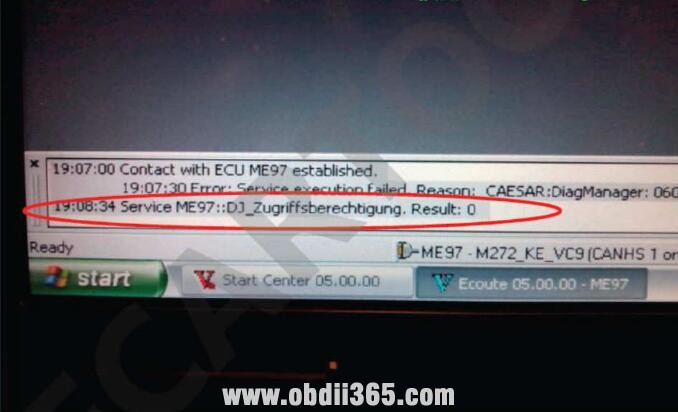
Double click “DJ_Zugriffsberechtigung”
It will show access permission
select “Coding” option from menu,and then“Variant Coding”
Select “lmplicit_Coding_ME97”
Now select “Vmax”,and then select new max speed from right list

change-benz-md97-vmax-vediamo-1

change-benz-md97-vmax-vediamo-2

change-benz-md97-vmax-vediamo-3

change-benz-md97-vmax-vediamo-4

change-benz-md97-vmax-vediamo-5

change-benz-md97-vmax-vediamo-6


How to Remove Mercedes Speed Limit by DTS Monaco?

Example on ME97 ECU

1.You need t unlock ECU DiagJob–>Zugriffsberechtigung 1 and Zugriffsberechtigung 2

change-benz-vmax-dts-monaco-1


(click to enlage images)

2.Choose Domane “Implizite Kodierung ME97”

3.Choose desired value for Vmax

4.Kodieren

5.Hard reset

change-benz-vmax-dts-monaco-2


http://blog.obdii365.com/2021/07/08/change-mercedes-speed-limiter-vmax-with-vediamo-or-dts-monaco/